Batch
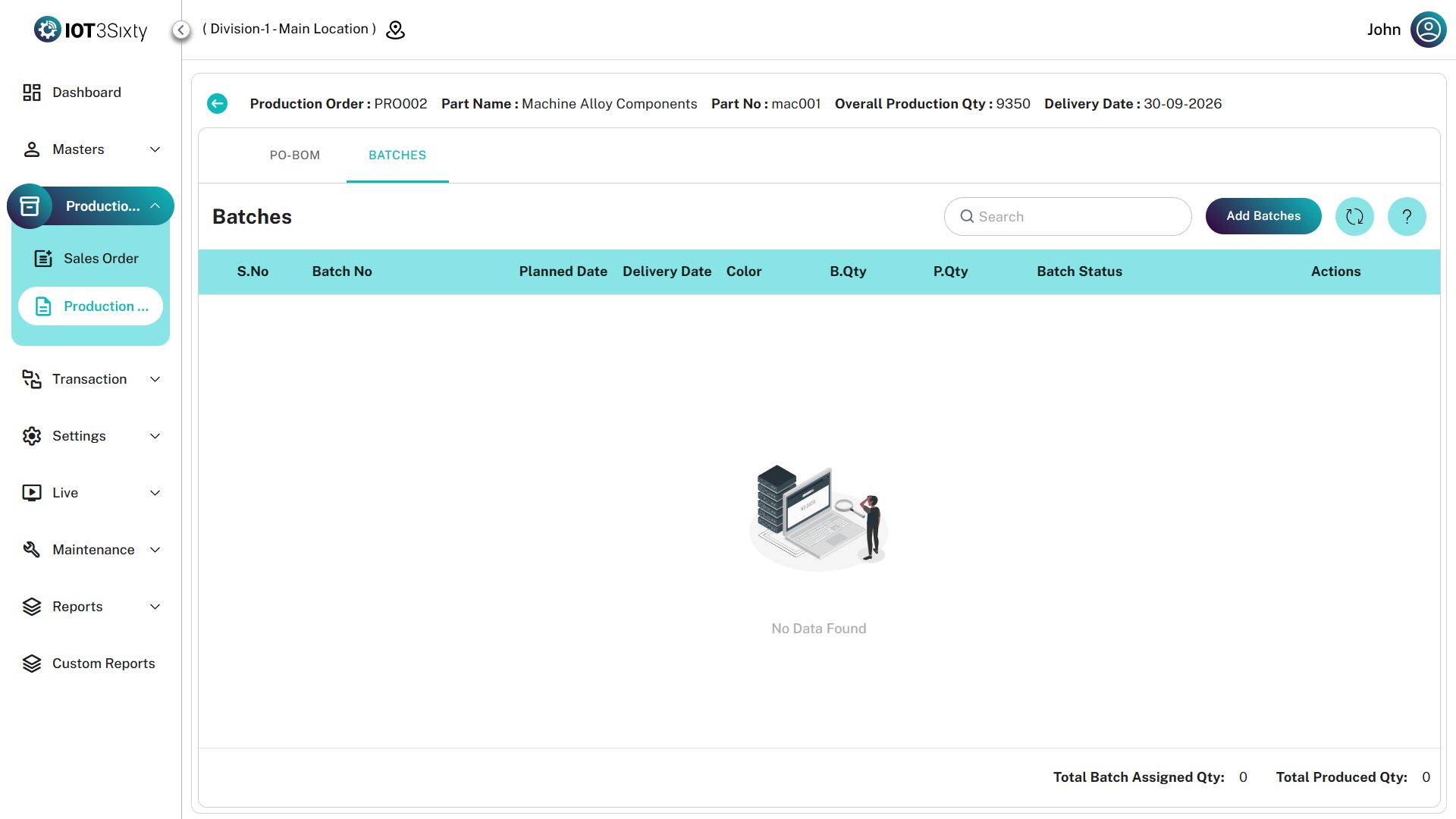
The Batch module is used to divide a production order into smaller manageable units for manufacturing execution.
Each batch represents a portion of the production order that will be processed through the production line.
Batch creation helps organize production scheduling, machine allocation, and shift planning.
Prerequisite
Before creating a batch, ensure that a Sequence Configuration has been created.
The Add New option for Batch will only be enabled if the required sequence configuration exists.
This is necessary because the Batch Number is automatically generated based on the configured sequence.
Creating a Batch
To create a batch:
- Navigate to Production → Production Order.
- Select the required Production Order.
- Go to the Batch section.
- Click the Add New button.
- The Batch creation form will open.
- Enter the required details.
- Click Save.
Batch Details
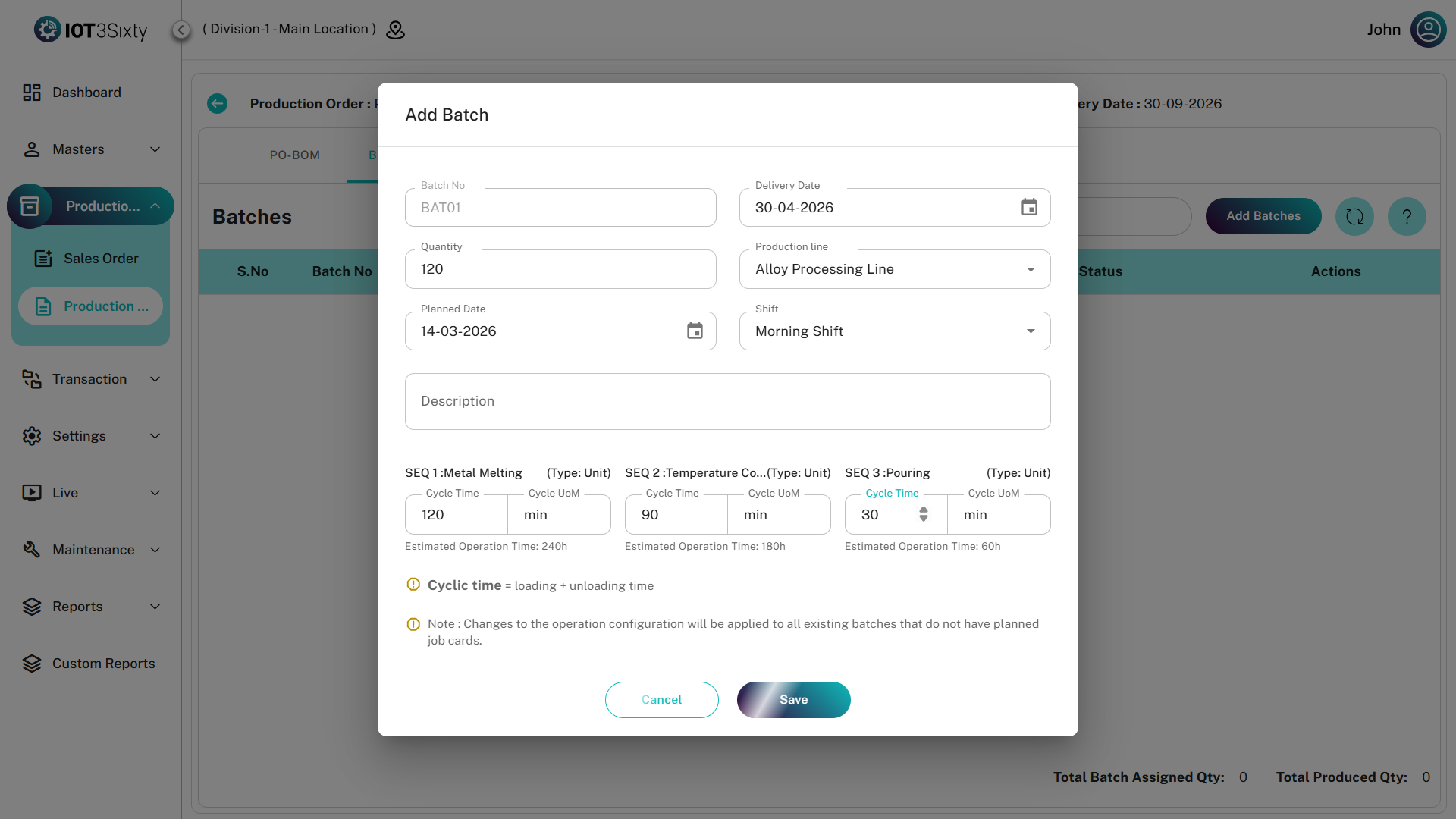
The batch form contains the following fields.
| Field | Description |
|---|---|
| Batch No | Automatically generated batch number based on the sequence configuration. |
| Delivery Date | The planned delivery date for the batch. |
| Production Line | Select the production line where the batch will be processed. |
| Quantity | The quantity assigned to the batch from the production order. |
| Planned Date | The planned date for executing the batch production. |
| Shift | Select the shift in which the batch will be executed. The shift list will appear based on the planned date. |
| Description | Optional field used to provide additional information about the batch. |
Shift Selection
When the Planned Date is selected, the system automatically displays the available shifts for that date.
Users must select the appropriate shift for executing the batch production.
Saving the Batch
After entering the required details:
- Verify the batch information.
- Click the Save button.
The batch will be created and associated with the selected Production Order.
Managing Batches
Once a batch is created, users can manage it from the Batch List.
The following actions are available:
- Edit
- Delete
- Cancel Batch
Edit Batch
Users can modify batch details if changes are required.
Steps:
- Locate the batch in the Batch List.
- Click the Edit option.
- Update the required fields.
- Click Save.
Delete Batch
If a batch is no longer required, it can be removed.
Steps:
- Locate the batch in the Batch List.
- Click the Delete option.
- Confirm the deletion.
Batch Cancellation
If a batch needs to be cancelled, the system provides a Batch Cancellation option.
Steps to cancel a batch:
- Select the batch from the Batch List.
- Click the Cancel option.
- A Notes section will be displayed explaining the cancellation process.
- Read the notes carefully.
- Enter the Reason for cancellation.
- Click Confirm.
Batch Status
After cancellation:
- The Batch Color will automatically allocate.
- The Batch Status will be updated.
The updated status will be visible in the Batch List, helping users easily identify cancelled batches.
Summary
The Batch module helps organize production execution by dividing production orders into manageable units.
It allows users to:
- Automatically generate batch numbers
- Assign production lines
- Plan production dates and shifts
- Edit batch details
- Delete batches if required
- Cancel batches with proper reason tracking
This ensures structured production scheduling and clear batch status tracking within the MES system.