Additional Material Request
The Additional Material Request module is used to request materials that were not part of the original Bill of Materials (BOM) or when extra quantities are required during production due to unexpected situations on the shop floor.
These requests help ensure that production continues smoothly even when unplanned material requirements occur.
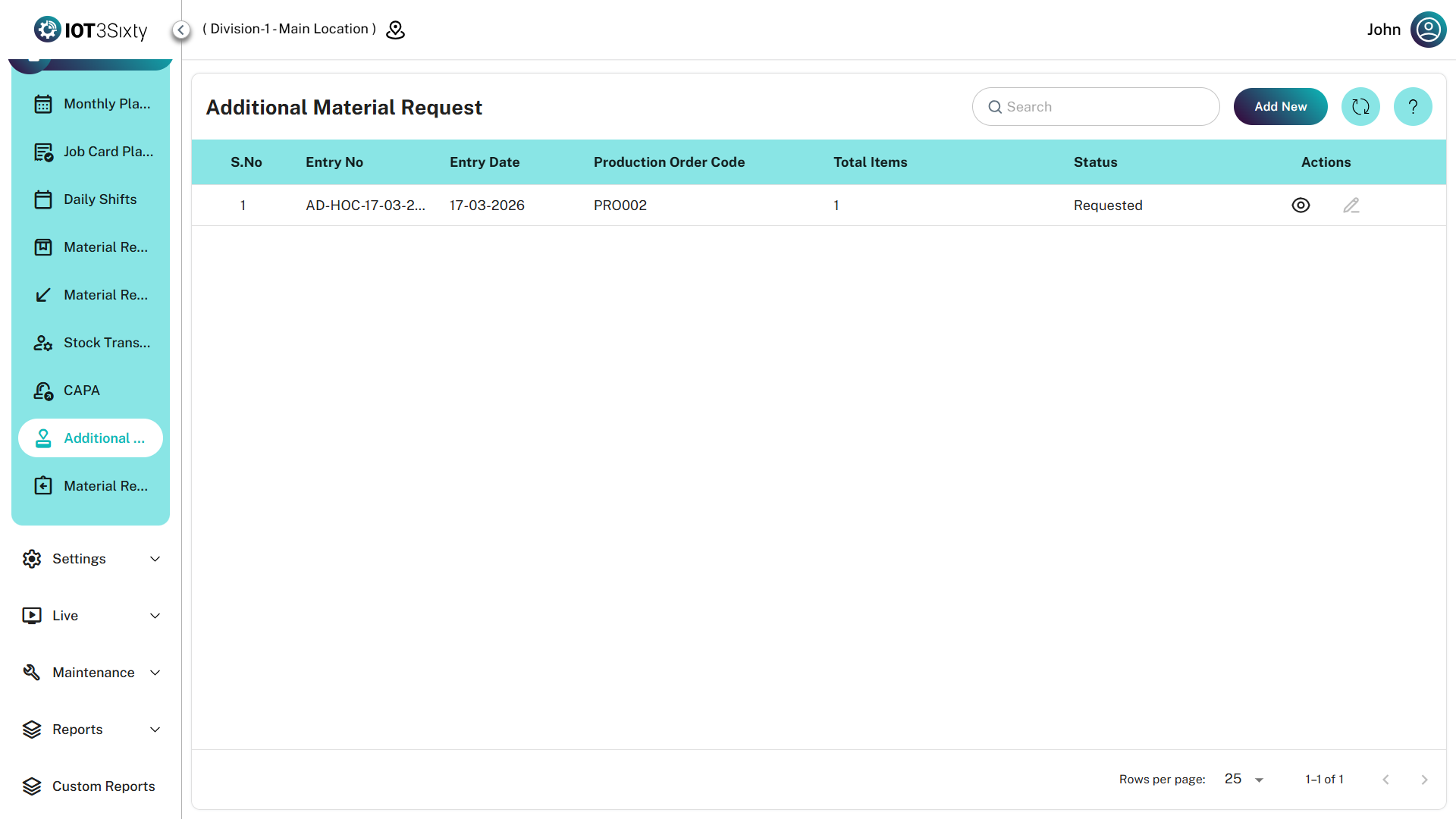
1. Dashboard Overview
The dashboard allows users to track and manage all additional material requests.
Key Features
| Feature | Description |
|---|---|
| Initiated By | Displays who created the request. Managers/Supervisors can see all requests, while operators see only their own |
| Search & Filter | Locate requests using Entry No or Production Order Code |
| Refresh | Retrieve the latest request and approval status updates |
Fields in the List
| Field | Description |
|---|---|
| Entry No | Unique tracking number for the request |
| Entry Date | Date when the request was created |
| Production Order Code | Production order associated with the additional material requirement |
| Total Items | Total number of materials requested |
| Status | Current state of the request |
Status Types
| Status | Description |
|---|---|
| Draft (DRFT) | Request saved but not yet submitted |
| Requested (REQUESTED) | Request submitted for approval |
| Approved (APPROVED) | Request accepted and materials can be issued |
| Rejected (REJECTED) | Request denied with a rejection reason |
2. Requesting Additional Materials (Add / Edit)
To request extra materials, click Add New from the dashboard.
Step 1: Link to Production Order
| Field | Description |
|---|---|
| Production Order | Select the production order related to the request |
| Entry No | Auto-generated request number |
| Entry Date | Automatically populated with the current date |
Selecting the Production Order filters the item search so that only relevant materials associated with the job are displayed.
Step 2: Adding Items
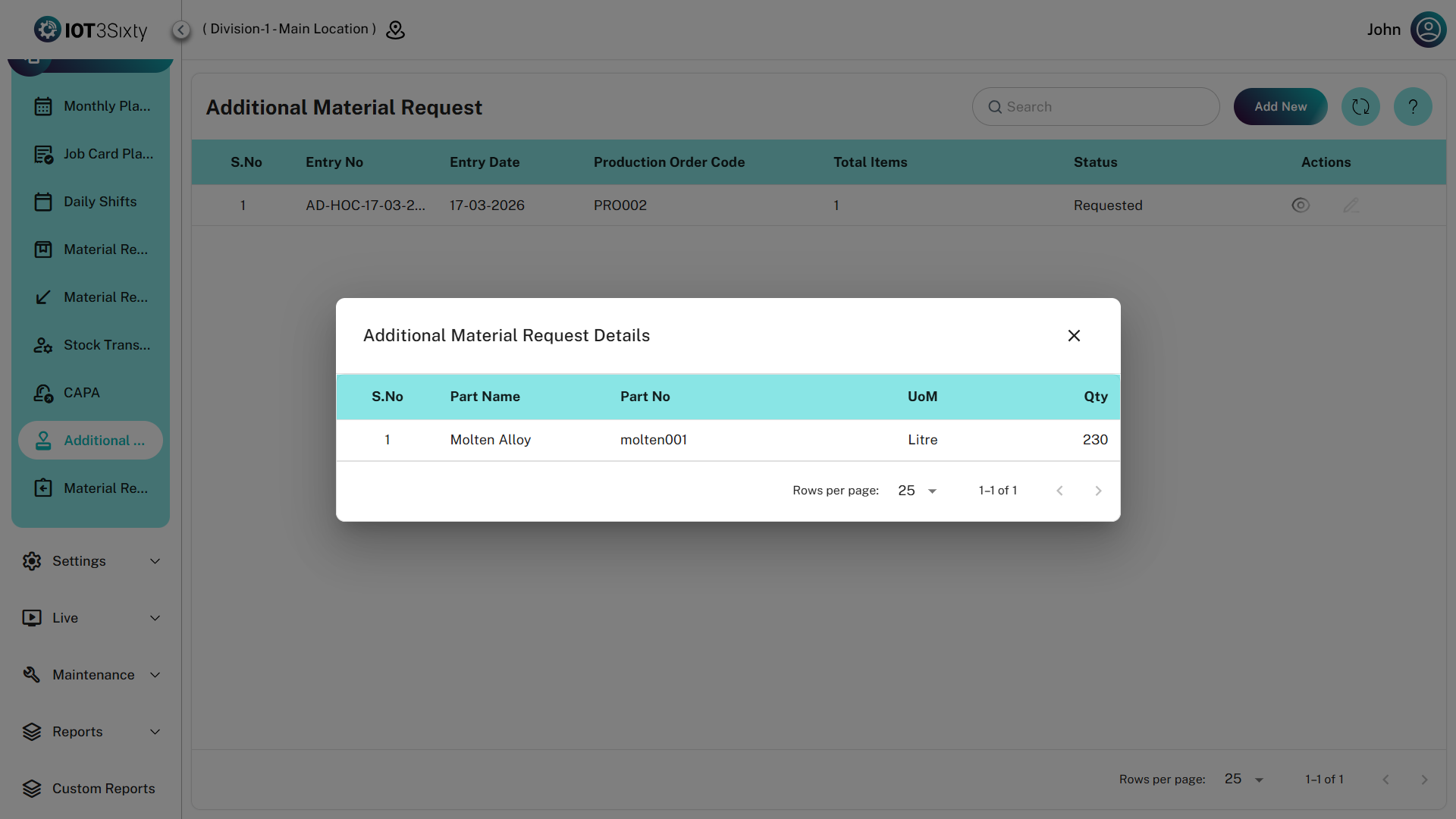
Use the items table to specify the additional materials required.
| Field | Description |
|---|---|
| Part Name | Search and select the required material |
| Part No | Automatically filled after selecting the part |
| UOM | Unit of measure for the material |
| Qty | Quantity of material required |
Validation Rules
- Quantity must be greater than zero
- Item search results are filtered based on the selected production order
Step 3: Submission
Before submitting the request, a reason must be provided.
| Field | Description |
|---|---|
| Request Reason | Mandatory explanation for the additional material requirement |
Submission Options
| Option | Description |
|---|---|
| Save as Draft | Save the request without sending it for approval |
| Submit / Request | Send the request for manager or supervisor approval |
3. Approval & Rejection Workflow
Users with appropriate permissions (Managers / Supervisors) can review and approve or reject requests.
Approving a Request
Steps for approval:
- Click the Approve icon from the dashboard.
- Review the requested materials, quantities, and request reason.
- Click Approve to authorize the request.
Once approved, materials can be picked and issued from inventory.
Rejecting a Request
If the request is invalid or needs correction:
- Click Reject from the dashboard.
- Enter a Reject Reason explaining the decision.
- Confirm the rejection.
The request status will change to REJECTED, and the requester will see the feedback.
Additional Material Requests are Ad-Hoc requests and bypass the standard inventory planning process.
Always provide a clear and accurate Request Reason to maintain proper production audit records.