Material Receive
The Material Receive module is used to confirm and acknowledge the actual quantities of materials received after a Material Request has been fulfilled by a source location such as a Warehouse or another Production Area.
This module ensures that the received materials are verified and accurately recorded in the destination inventory.
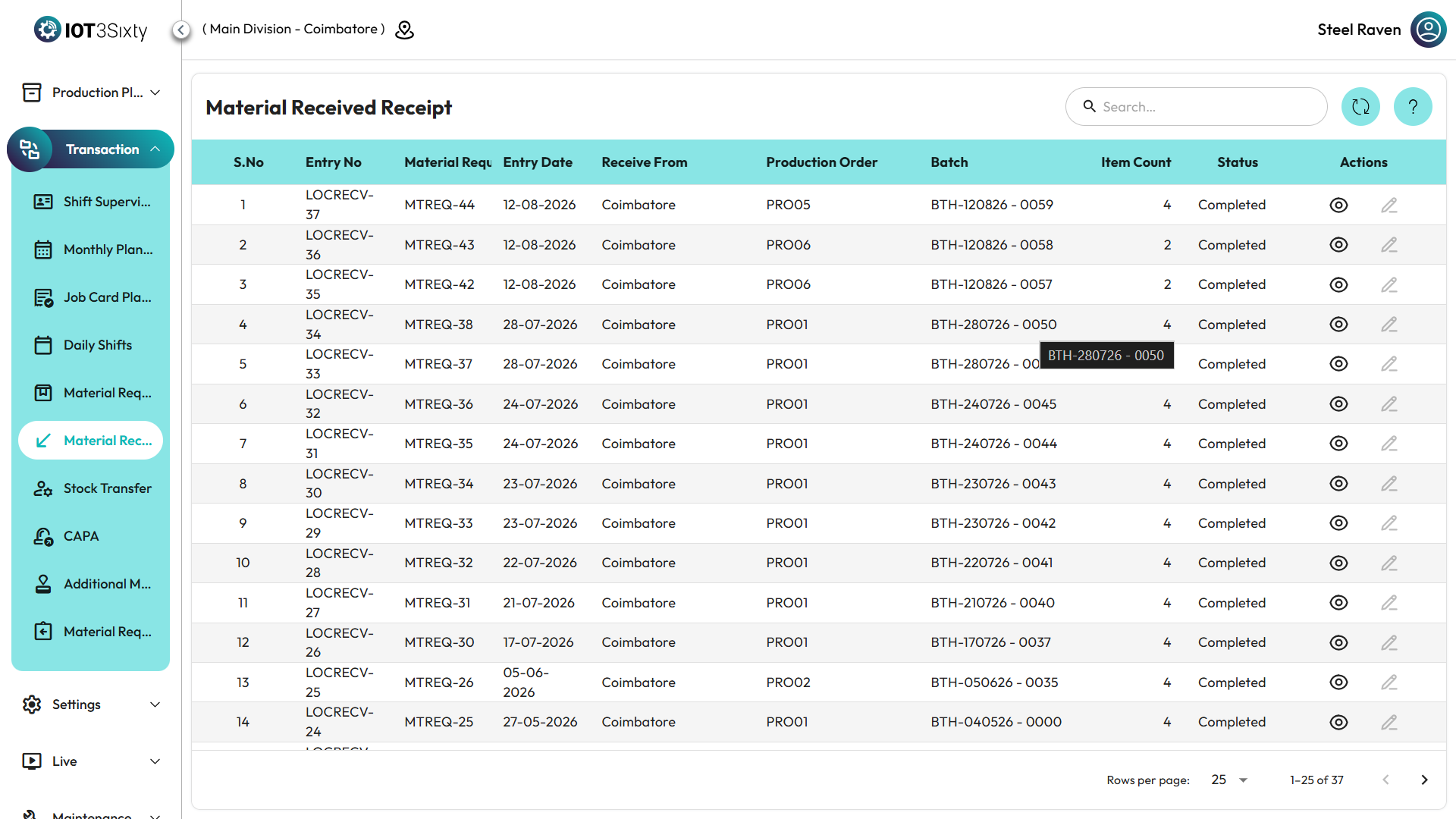
1. Material Receive Dashboard (List View)
The Material Receive dashboard displays all material receipts that are either pending confirmation or already completed.
Key Features
| Feature | Description |
|---|---|
| Search | Use the quick filter to find receipts by Entry No or Material Request Code |
| Refresh | Fetch the latest receipt updates from other locations |
| Status Tracking | Monitor which receipts are pending confirmation |
Fields in the List
| Field | Description |
|---|---|
| Entry No | Unique identifier for the receipt transaction |
| Material Request Code | Reference to the original material request |
| Entry Date | Date when the material was dispatched or logged |
| Receive From | Location that sent the materials |
| Item Count | Number of distinct items included in the shipment |
| Status | Current receipt state (e.g., Delivered, Completed) |
Actions
| Action | Description |
|---|---|
| View | Opens a read-only view showing all received items |
| Edit | Opens the confirmation form to verify received quantities (available only if status is not Completed) |
2. Confirming Material Receipt (Edit Form)
When materials physically arrive at the destination location, the user must verify and confirm the actual quantities received.
Header Information (Read-Only)
| Field | Description |
|---|---|
| Receive From / To | Displays the source and destination locations |
| Material Request Code | Reference to the original request |
| Entry No | Unique identifier for the receipt |
| Entry Date | Date when the receipt entry was created |
Received Quantities Table
The table displays the list of materials that were sent from the source location.
| Field | Description |
|---|---|
| Part No | Unique identifier of the material item |
| Part Name | Name of the material |
| Item Barcode | Barcode used for verification scanning |
| Item Qty | Quantity reported as sent from the source location |
| Received Qty | User must enter the actual physically counted quantity |
3. Completion Process
Once all quantities are verified:
| Action | Description |
|---|---|
| Save | Confirms the receipt, updates inventory at the destination location, and marks the status as Completed (CMPL) |
4. Workflow Summary
The material receiving process follows these steps:
-
Notification
A new entry appears when another location sends materials to your location. -
Verification
Click Edit to open the receipt confirmation form. -
Physical Counting
Count the materials received at the shop floor. -
Quantity Entry
Enter the counted quantities in the Received Qty column. -
Final Confirmation
Click Save to complete the transaction and update the floor inventory.
A receipt cannot be saved if any Received Qty value is entered as 0 or less.
Ensure every item in the list is properly verified before completing the receipt.