Stock Transfer
The Stock Transfer module is used to manage the physical movement of materials between storage locations within the plant. )
Unlike Material Requests, which indicate demand, a Stock Transfer records the actual movement by specifying the exact Batch and Quantity being transferred.
1. Stock Transfer Dashboard
The dashboard provides a real-time overview of all internal stock movements.
Status Types
| Status | Label | Description |
|---|---|---|
| DRFT | Draft | The transfer is saved, but inventory is not yet deducted from the source location. |
| TRANS | Transferred | The transfer is completed. Stock is deducted from the source and added to the destination location. |
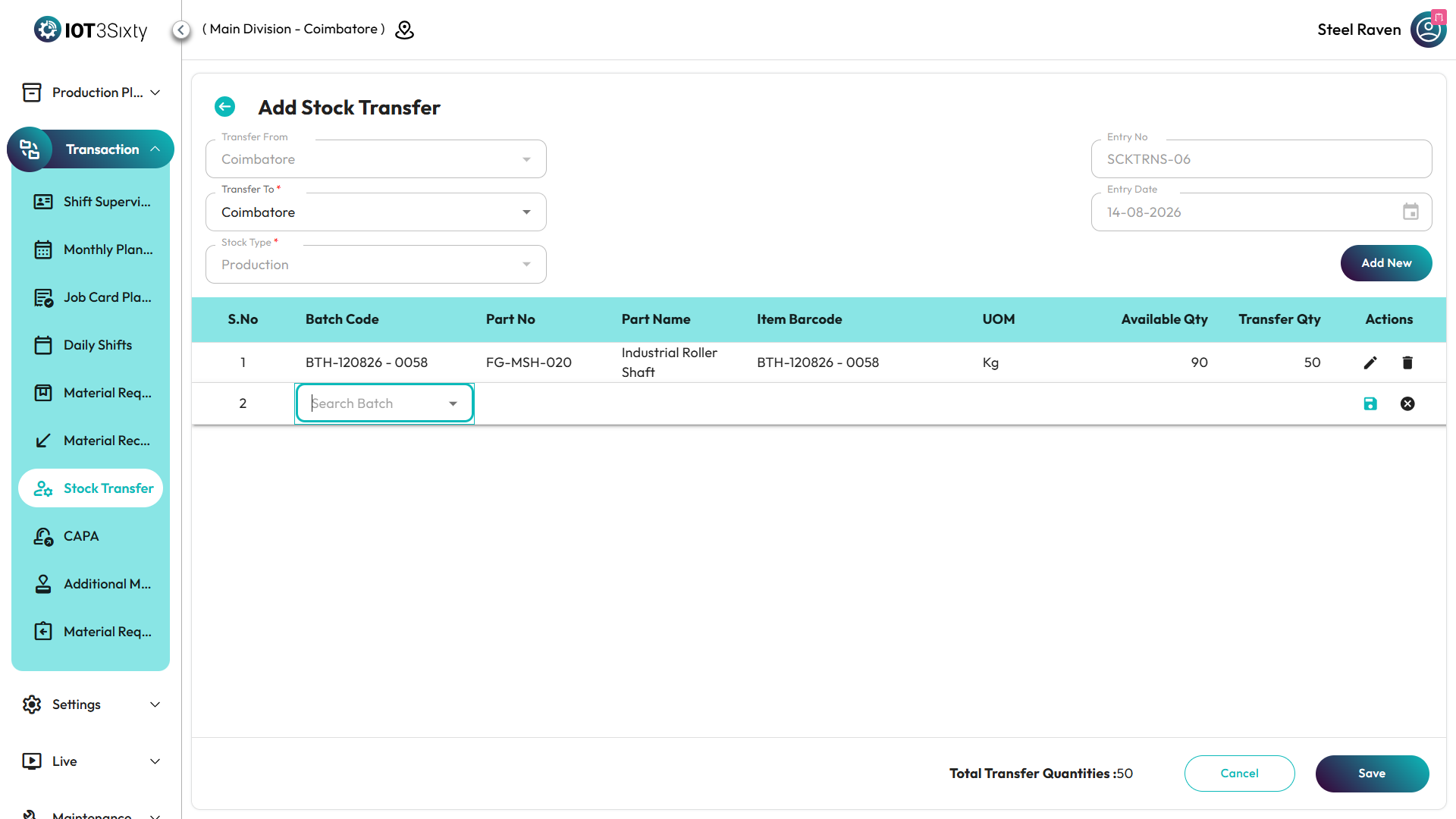
2. Creating a Stock Transfer
To initiate a transfer, navigate to:
Transaction → Stock Transfer → Add New
Step 1: Header Configuration
- Transfer From: Automatically set to your current session location (read-only).
- Transfer To: Select the destination warehouse or production line.
- Stock Type:
- Production → Standard items
- Scrap → Rejected materials
⚠️ Important
Changing the Stock Type after adding items will clear the item list to maintain data consistency.
Step 2: Batch-Based Item Entry
Stock transfers are batch-driven to ensure full traceability (Heat No, Lot No).
Process:
-
Batch Search
Enter at least 3 characters in the Batch Code field. -
Auto-Population
On selecting a batch, the system automatically fills:- Part Number & Part Name
- Item Barcode
- Available Quantity (real-time stock at source)
- UOM (Unit of Measure)
-
Scrap Handling
For Scrap transfers:- If a batch contains multiple scrapped parts,
the Part Number field becomes editable
to select the correct material.
- If a batch contains multiple scrapped parts,
Step 3: Quantity Validation
The system performs real-time validation on the Transfer Quantity:
- Zero Check → Quantity must be greater than 0
- Availability Check → Cannot exceed available stock
- Request Check → Cannot exceed requested quantity (if linked to a request)
3. Finalizing the Transaction
Before completing, review the Total Transfer Quantity in the table footer.
Actions
-
Save as Draft
- Saves the transfer without affecting inventory
- Status: DRFT
-
Transfer
- Executes the stock movement
- Updates inventory instantly
- Status: TRANS
Summary
The Stock Transfer module ensures accurate and reliable inventory movement across locations.
Key Benefits
-
Batch Traceability
Every transaction is linked to a specific heat/lot number. -
Real-Time Validation
Prevents invalid or excess transfers. -
Stock Segregation
Maintains clear separation between production and scrap inventory. -
System Integration
Supports both manual transfers and request-based transfers.