Daily Shifts
The Daily Shifts module is the central hub for managing shop-floor production operations.
It allows supervisors to control shift-based production line execution and monitor the real-time progress of batches.
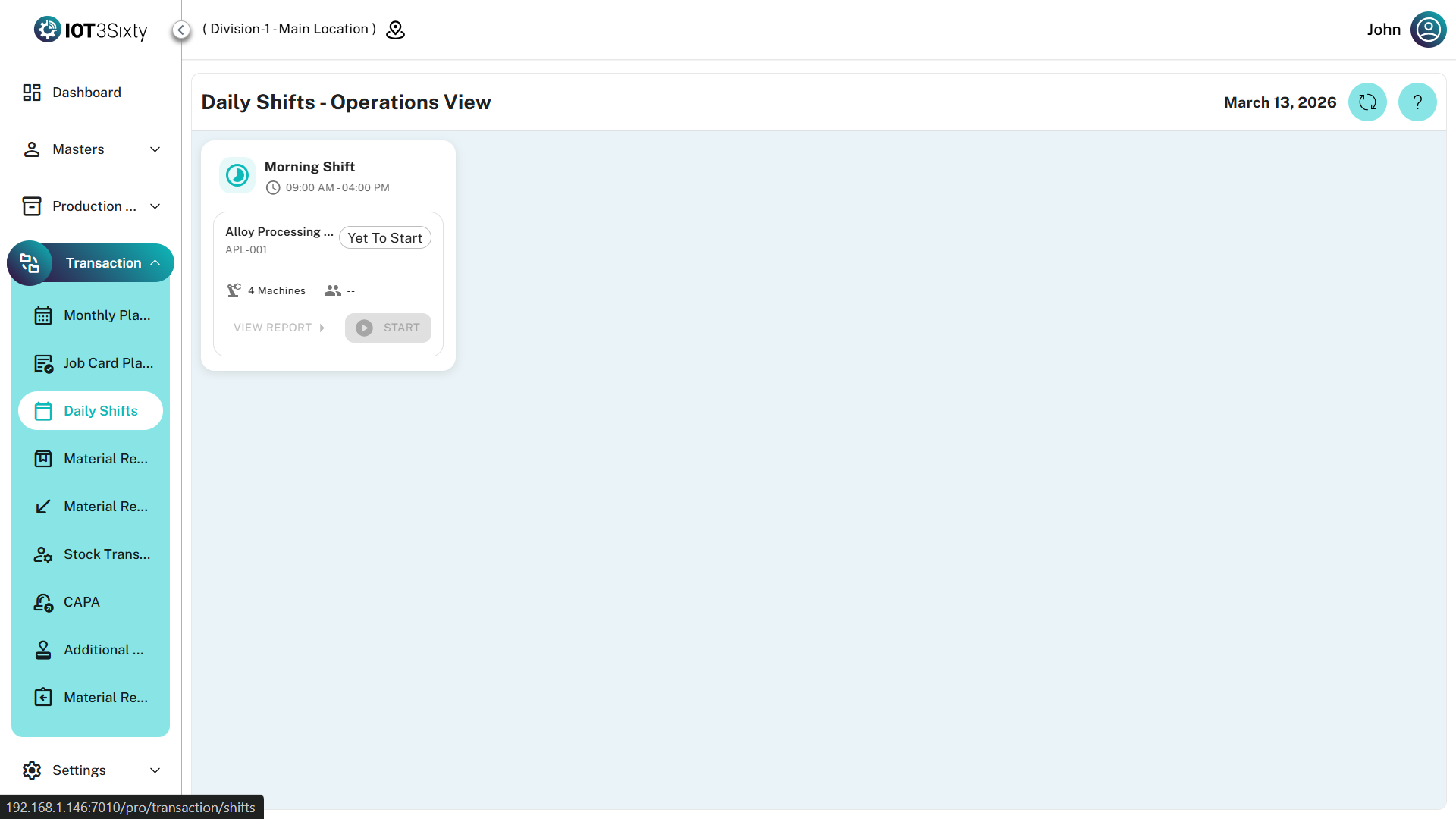
Overview
The interface is divided into two primary sections.
| Section | Description |
|---|---|
| Shift & Line Navigator | A horizontal list displaying active shifts and their associated production lines |
| Batch Progress Area | Shows the list of batches that are queued, running, or completed on the selected production line |
This layout helps supervisors monitor production activity and manage line operations efficiently.
Key Features
1. Shift & Line Monitoring
Supervisors can monitor production line status and shift details in real time.
| Feature | Description |
|---|---|
| Shift Status | Displays the start time and end time of each shift |
| Line Status Cards | Shows the current production state of the line such as RUNNING, COMPLETED, or YET TO START |
| Manpower & Machine Stats | Micro-cards display the number of assigned machines and active manpower |
2. Line Execution (Start / Stop)
Supervisors can control the execution state of production lines.
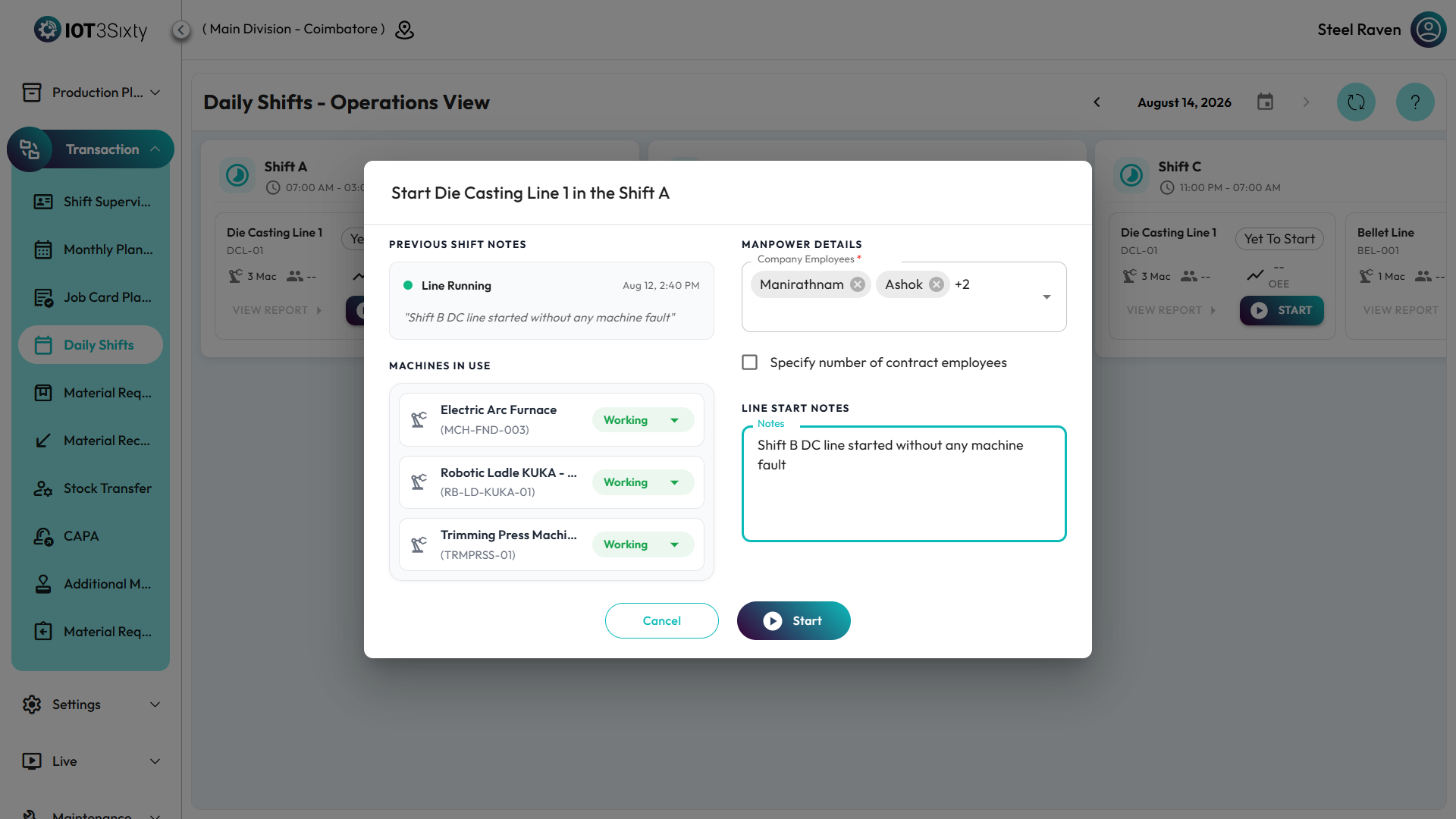
Start Line
Before starting a production line, the supervisor must record the following details:
| Field | Description |
|---|---|
| Manpower | Select company employees and enter contractor manpower count |
| Machine Readiness | Confirm whether machines are Working, Idle, or Not Working |
| Previous Logs | Displays a summary of the previous shift’s production data for reference |
Once the required information is entered, the supervisor can start the production line.
Stop Line
When the shift or production process ends:
- The supervisor can stop the production line.
- Completion notes can be recorded.
- Final machine statuses must be updated.
This ensures accurate tracking of production activity for each shift.
3. Batch Progress Tracking
When a production line is selected, the lower section displays the batches associated with that line.
Batch Cards
Each batch is represented as a card showing:
| Field | Description |
|---|---|
| Batch Code | Unique identifier of the batch |
| Total Quantity | Planned production quantity |
| Status | Indicates whether the batch is In Progress, Queue, Completed, or On Hold |
Progress Bars
Each batch card contains a progress bar indicating the completion percentage.
This is calculated based on the number of completed job cards (operations).
Navigation
Clicking a batch card will open the Job Execution view, where users can monitor and manage operation-level execution.
4. Viewing Reports
Supervisors can view production reports directly from the line card.
Steps:
- Click View Report on the production line card.
- A summary dialog will open displaying production details.
The report includes the following information:
| Field | Description |
|---|---|
| Actual Start Time | The time when the production line was started |
| Manpower Details | Breakdown of supervisors, registered employees, and contractors |
| Machine Details | List of assigned machines including station numbers and hourly rates |
Toolbar Actions
The toolbar provides quick access to common system actions.
| Action | Description |
|---|---|
| Location Selector | Select the facility location to load production data |
| Refresh | Retrieves the latest real-time shift and line status updates |
| Batch View Toggle | Switch between Current batches and Pending batches |
If a production line is marked as YET TO START, the Start button will be disabled if no batches are planned for that line.
Ensure that Job Card Planning is completed before starting execution.