Generate Shift
The Generate Shift module is used to assign previously created sessions/shifts to a specific date range. This allows the system to schedule production activities and workforce planning on a visual, interactive calendar.
By generating shifts, the MES system determines which shifts are active for each day within the selected period.
Creating a Generated Shift
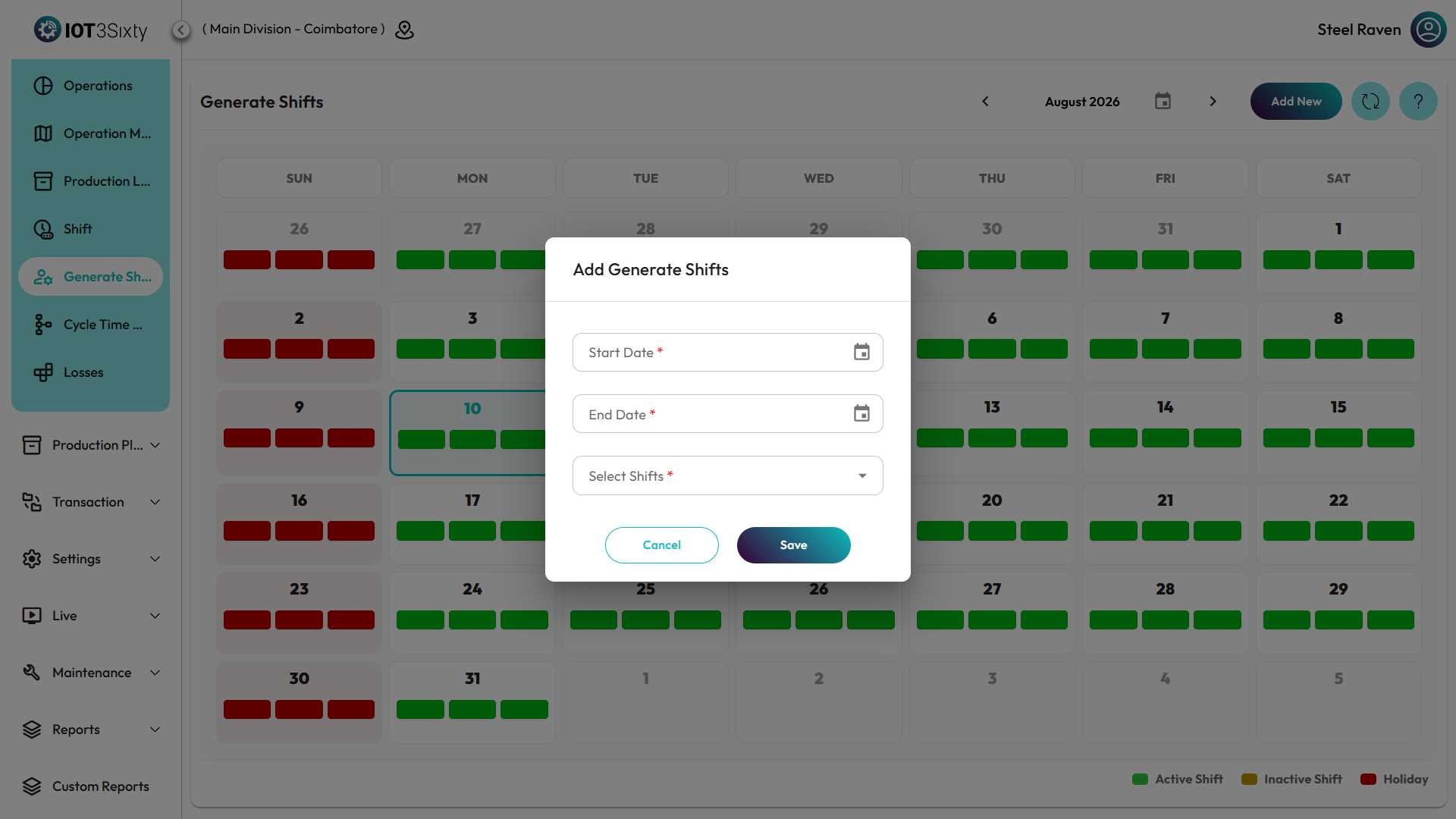
To generate shifts for a period:
- Navigate to Masters → Generate Shift.
- Click the Add New button in the top toolbar.
- The Generate Shift form will appear in a dialog.
- Enter the required details:
- Start Date: The date from which the schedule begins.
- End Date: The date until which the schedule is active.
- Shift: Select the shift master template (e.g., General Shift, First Shift).
- Click Save.
Integrated Calendar View
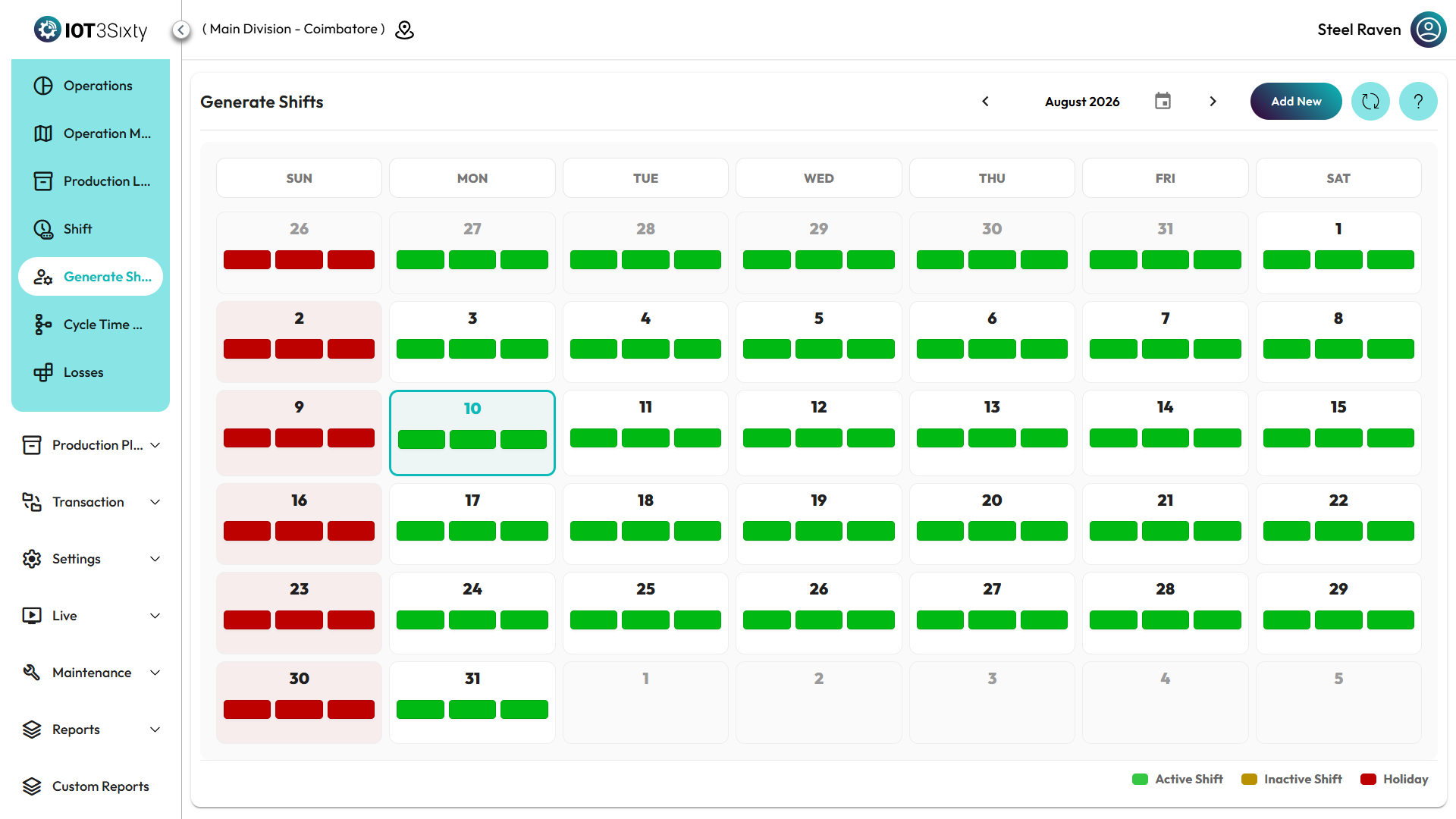
After clicking Save, the system automatically generates shift schedules for each day within the range. The system uses a Calendar Interface to provide high-density visibility.
Calendar Indicators
The calendar cells and "pills" use color-coded logic to show daily status:
| Status | Legend Style | Description |
|---|---|---|
| Active Shift | Green Pill | Indicates the shift is generated and currently active. |
| Inactive Shift | Yellow/Orange Pill | Indicates a shift is scheduled but marked as inactive. |
| Holiday | Red Cell Background | Indicates that all shifts for this day are inactive (Full Holiday). |
| Today | Blue Border/Text | Highlights the current date on the calendar. |
Visual Pills
Each date cell contains Shift Pills representing individual shifts.
- Sorting: Pills are automatically sorted by their start time chronologically.
- Tooltip: Hovering over a pill reveals the Shift Name, Time Range (Start/End), and current Status (Active/Inactive).
Viewing Shift Details
Clicking on any Shift Pill in the calendar opens the Shift Details View.
This provides deep visibility into:
- Timings: Start Time, End Time, and total Duration in minutes.
- Breaks: A list of planned breaks (e.g., Lunch, Tea) including their specific timings and individual durations.
- Actions: Direct "Edit" and "Delete" shortcuts are available in the details dialog if permissions are granted.
Summary
The Generate Shift module transforms master data into a functional production schedule.
It enables users to:
- Bulk generate schedules via start and end date ranges.
- Visualize the entire month's operational status at a glance.
- Track breaks and durations effectively for accurate production planning.
- Identify Holidays and inactive periods instantly through color-coded logic.