Stock Detail Report
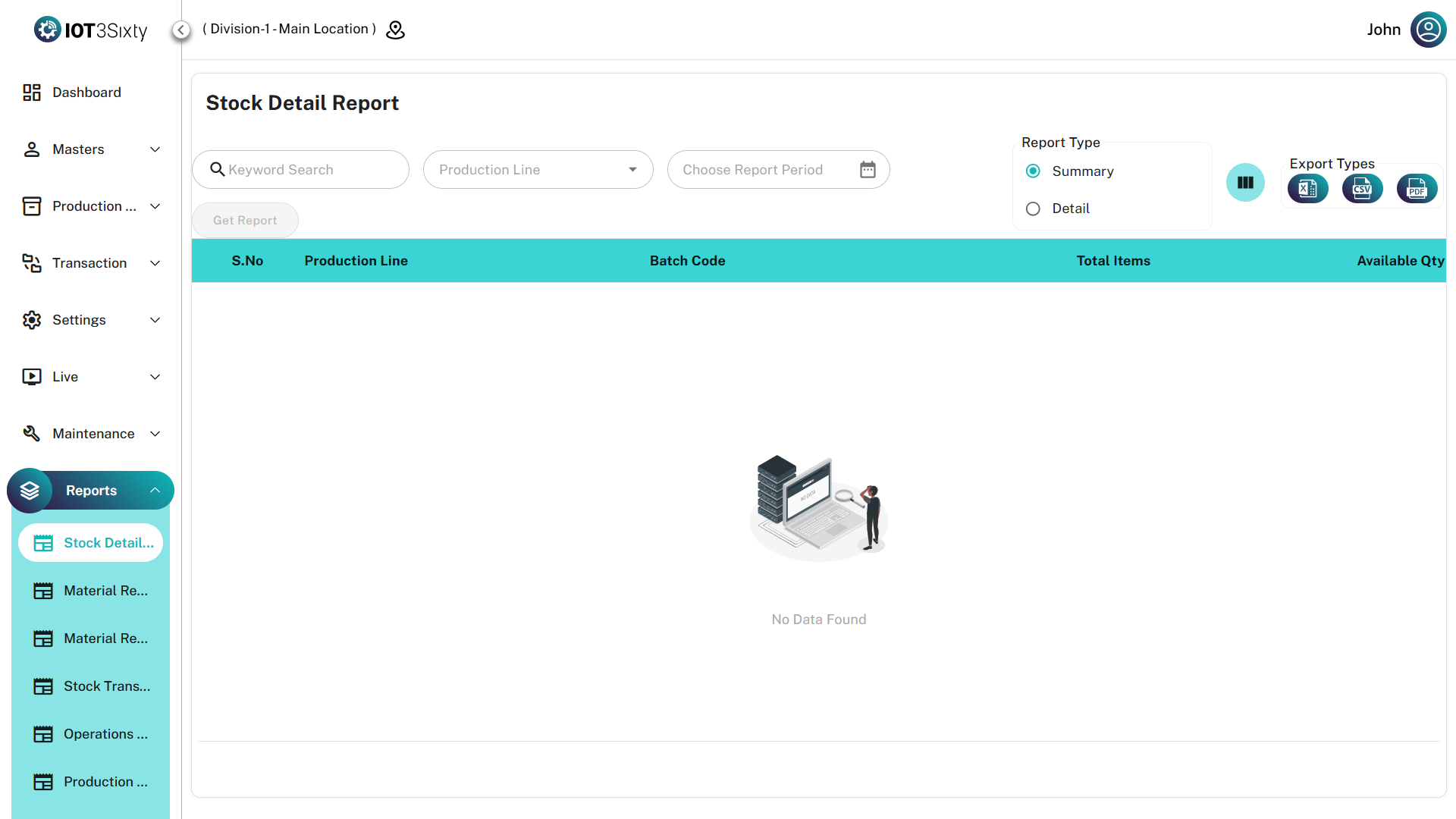
The Stock Detail Report provides a comprehensive view of the inventory status by production line and batch.
It allows users to switch between high-level batch summaries and detailed item-level tracking, helping teams monitor material availability and consumption effectively.
Key Features
| Feature | Description |
|---|---|
| Toggle Views | Switch between Summary View (batch-level totals) and Detail View (individual item breakdown) |
| Flexible Filtering | Generate reports using Production Line, Date Range, or Search Keywords |
| Column Customization | Select which columns should appear using the Column Selector tool |
| Export Options | Download reports in PDF, Excel, or CSV formats for offline analysis |
Data Breakdown
1. Summary View
The Summary View groups inventory data by Batch Code and provides an overview of the batch-level stock.
| Field | Description |
|---|---|
| Batch Code | Unique identifier for the production batch |
| Total Items | Number of items included in the batch |
| Available Quantity | Total quantity currently available in the batch |
| Production Line | The production line associated with the batch |
This view is useful for quick batch-level inventory monitoring.
2. Detail View
The Detail View displays a row-by-row breakdown of each item within the batch.
| Category | Fields |
|---|---|
| Identification | Part Name, Part No, Item Barcode |
| Status | Current state of the item (Available, Consumed, etc.) |
| Quantities | Received Quantity, Consumed Quantity, Available Quantity |
This view helps users track individual materials and barcodes in detail.
User Instructions
Follow these steps to generate a stock detail report.
1. Select Filters
- Choose a Production Line (optional).
- Select the Report Period / Date Range.
2. Generate Report
Click Get Report to load the inventory data in the table.
3. Refine the Data
- Use the Search bar to locate specific parts or batches.
- Use the Column Selector to customize visible fields.
4. Export the Report
Use the export icons in the toolbar to download the report as:
- Excel
- CSV
Use Detail View when tracking specific barcodes or individual items, and use Summary View when you only need batch-level inventory totals.