Production Stock Report
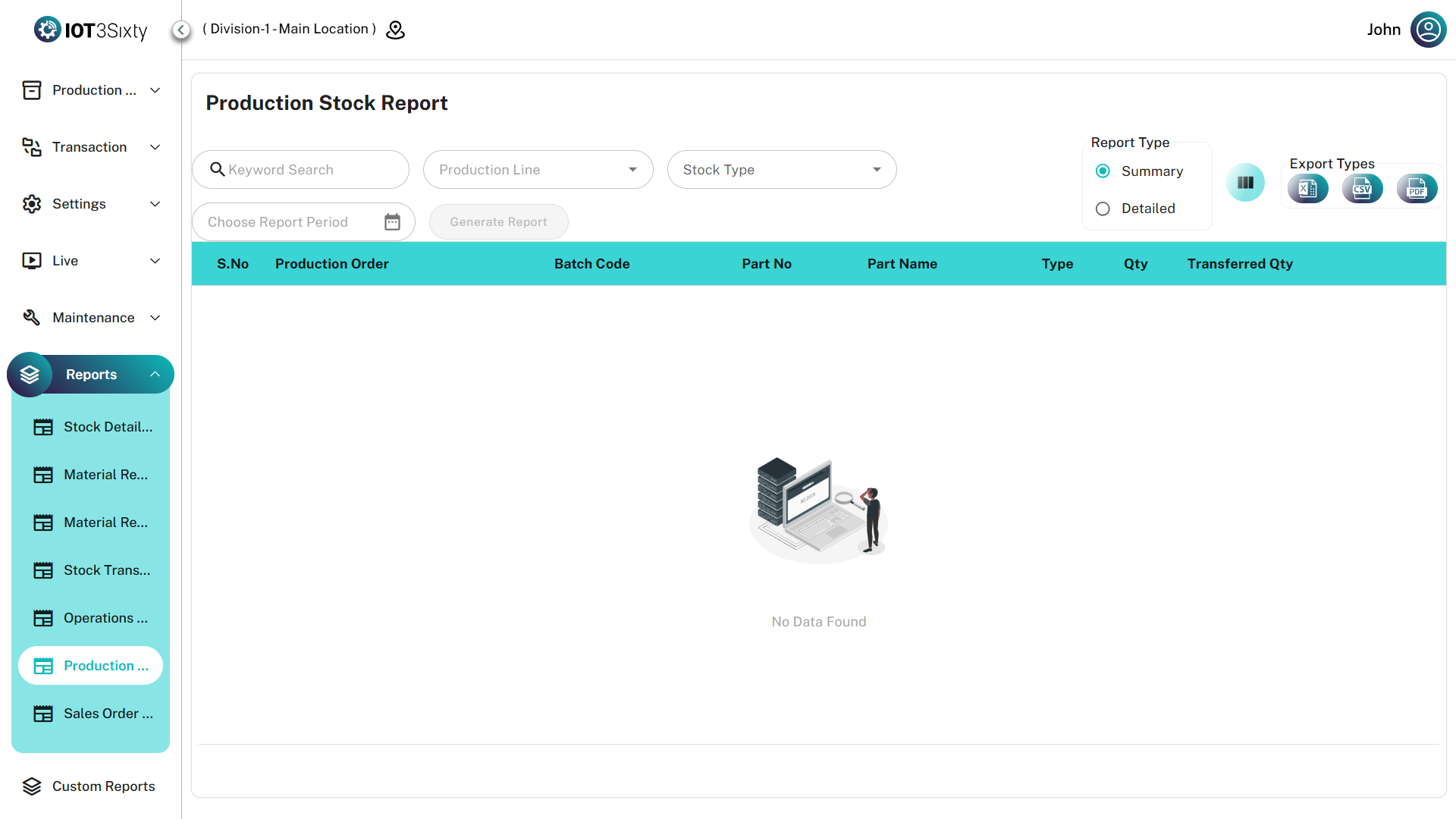
The Production Stock Report provides a focused view of inventory generated directly from production operations.
It helps track materials produced during manufacturing by linking stock entries to specific Production Orders and Batch Codes.
This report enables production teams to monitor good product output, scrap generation, and product attributes created during operations.
Key Features
| Feature | Description |
|---|---|
| Production Context | Connects inventory to its origin using Production Order and Batch Code references |
| Stock Type Filtering | Filter between Production Stock (good products) and Scrap Stock (rejected materials) |
| Dynamic Attributes | Automatically detects and displays operation-specific attributes such as Color, Size, or other custom characteristics |
| Dual Reporting Modes | Toggle between Summary View and Detail View for different analysis levels |
| Export Options | Download reports in Excel, CSV, or PDF formats |
Data Breakdown
1. Summary View
The Summary View provides an overview of stock generated from production.
| Field | Description |
|---|---|
| Production Order | Reference ID of the production order |
| Batch Code | Identifier for the production batch |
| Production Line | The line where the stock was produced |
| Stock Type | Production (Good Product) or Scrap (Rejected Material) |
| Total Quantity | Total stock quantity generated |
| UOM | Unit of Measure for the produced stock |
This view helps teams quickly assess production output and scrap quantities.
2. Detail View
The Detail View provides a granular breakdown of production stock.
| Category | Fields |
|---|---|
| Identification | Part Name, Part Number |
| Production Context | Production Order, Batch Code, Production Line |
| Operation Info | Specific operation that generated the stock |
| Attributes | Dynamic product attributes such as Color, Size, or custom properties |
| Quantities | Quantity produced along with associated UOM |
This view helps analyze how specific operations generated stock and what attributes are associated with it.
User Instructions
Follow these steps to generate the report.
1. Select Filters
- Choose the Production Line.
- Select the Stock Type:
- Production → Good product
- Scrap → Rejected material
2. Define Report Period
Use the Date Range Picker to select the required reporting period.
3. Generate Report
Click Generate Report to load production stock data.
4. Analyze Stock Data
- Switch to Detail View to view operation-level information and dynamic attributes.
- Review the production source and attribute data for each batch.
5. Refine the View
- Use the Column Selector to hide attribute columns that are not relevant to your analysis.
- Use the Search bar to find specific batches or production orders.
6. Export the Report
Use the export icons in the toolbar to download the report in:
- Excel
- CSV
If you are searching for specific product characteristics (such as a particular color batch or size variant), use the Detail View, as dynamic attributes only appear when they exist in the queried dataset.