Job Card Planning
Job Card Planning
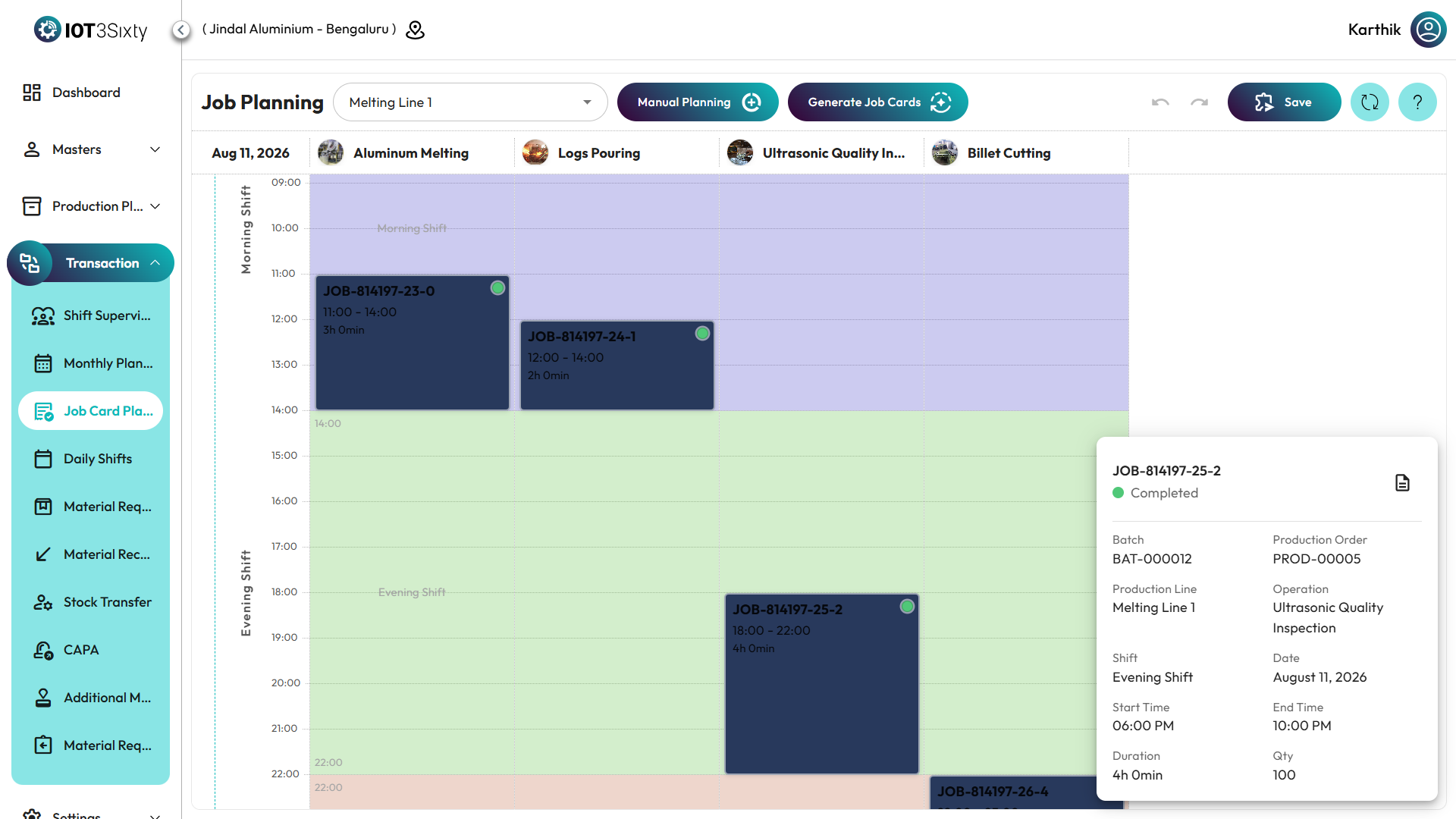
The Job Card Planning module provides a visual and interactive scheduling interface for planning production activities across multiple production lines and shifts.
It enables planners to efficiently allocate jobs, optimize resource utilization, and ensure production schedules align with operational requirements.
Planning Workflow
Scheduler Overview
The Scheduler Grid is the primary workspace used for planning production activities.
Scheduler Components
| Component | Description |
|---|---|
| Production Line | Selected manufacturing line for planning |
| Operations | Production stages displayed as columns |
| Timeline | 24-hour scheduling timeline |
| Date Column | Displays planning date |
| Shift Column | Displays configured shifts |
| Job Cards | Scheduled production activities |
1. Select Production Line
Select the required production line from the Production Line dropdown.
Result
- Operations are loaded automatically.
- Shift schedules become available.
- Existing planned jobs are displayed.
2. Batch Planning
Batch Planning automatically generates job cards based on the selected Production Order and Batch.
Steps
- Click Batch Planning.
- Select a Production Order.
- Select the required Batch.
- Click Generate Batches.
The system automatically creates job cards based on predefined routing and cycle times.
3. Manual Planning
Users can manually create job cards for individual operations.
Steps
- Click the Add (+) icon in the required operation column.
- Enter job information.
- Save the record.
The job card is immediately displayed in the scheduler.
4. Interactive Scheduling
The scheduler supports direct manipulation of job cards.
Drag and Drop
Benefits
- Quickly adjust schedules.
- Balance workloads.
- Accommodate production changes.
Resize Duration
Adjust the duration of a job directly from the scheduler.
Automatic Shift Splitting
When a job extends beyond a shift boundary, the scheduler automatically splits the job card.
Example
| Shift | Time |
|---|---|
| Morning | 06:00 AM - 02:00 PM |
| Afternoon | 02:00 PM - 10:00 PM |
If a job starts at 01:30 PM and runs for 2 hours, the scheduler automatically splits it across the relevant shifts.
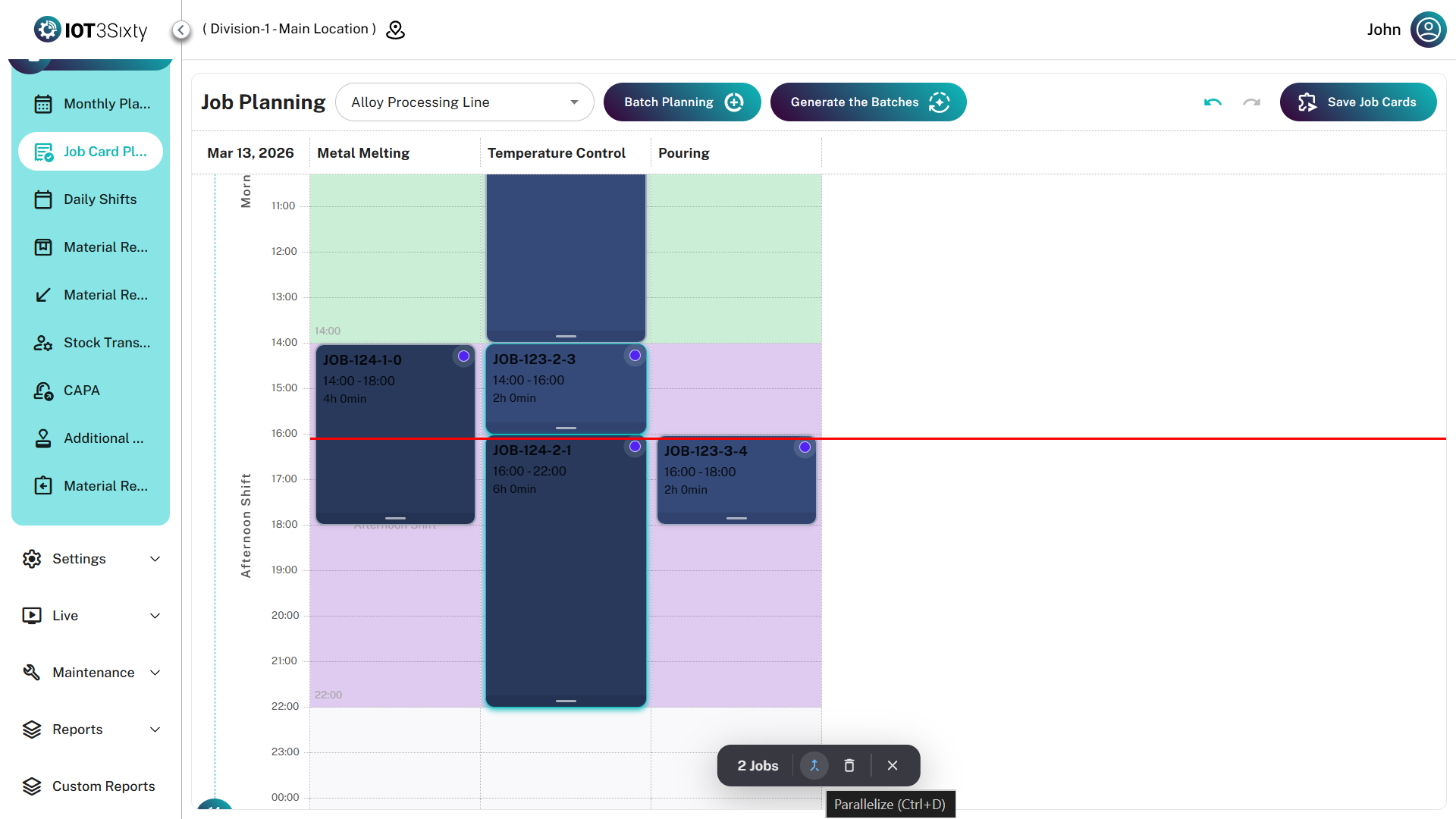
5. Multi-Select Actions
Multiple job cards can be selected for bulk operations.
Available Actions
| Action | Description |
|---|---|
| Parallelize | Align selected job cards to start simultaneously |
| Delete | Remove selected job cards |
Selection Method
- Windows: Ctrl + Click
- Mac: Cmd + Click
6. Save Planning
All planning changes remain in Draft Mode until saved.
Features
- Draft Mode Planning
- Undo Support
- Redo Support
- Final Save Confirmation