Material Receive Report
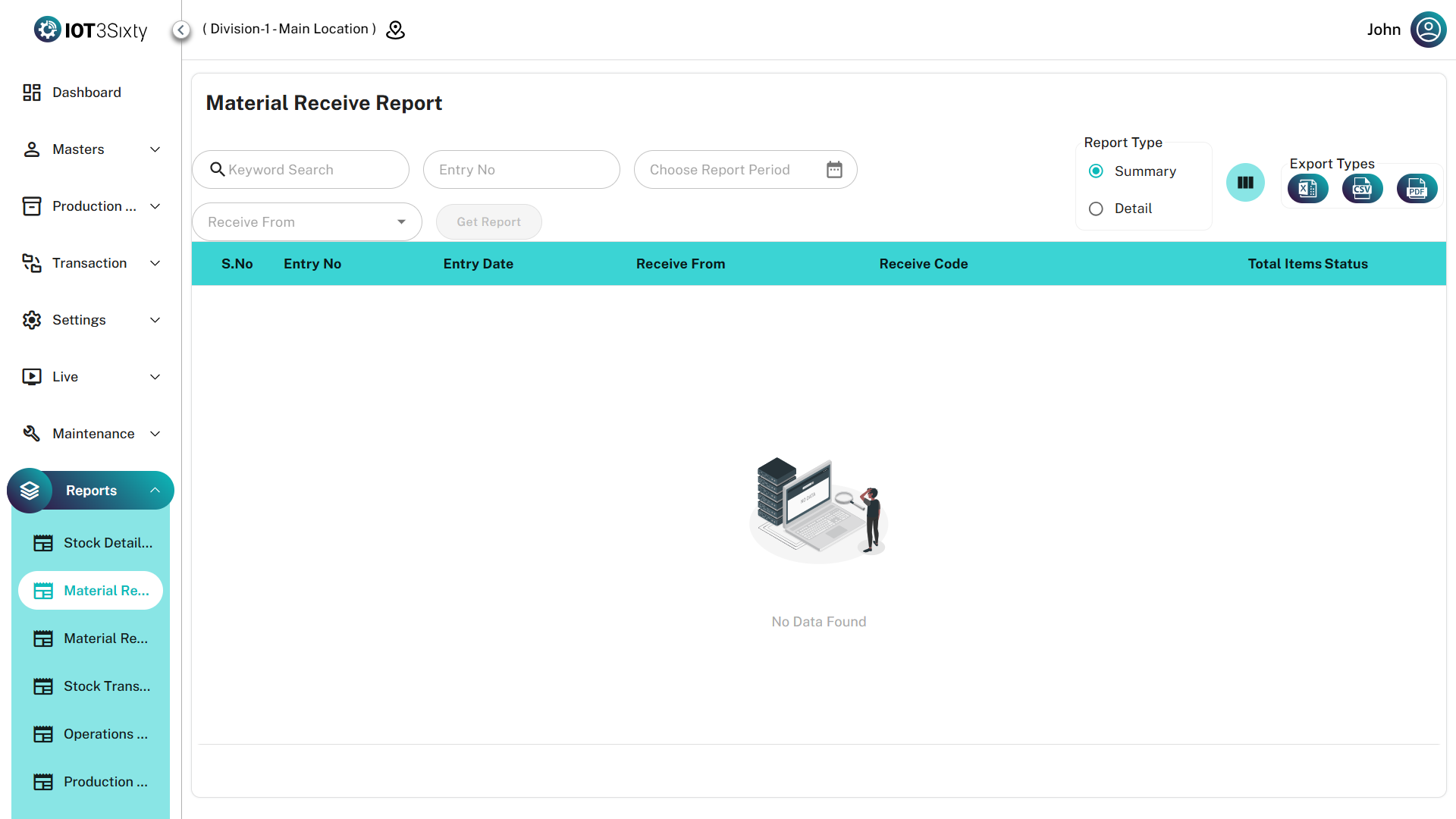
The Material Receive Report tracks all incoming material transfers and receipts within the system.
It provides centralized visibility into received materials, quantities, source locations, and current processing status inside the MES environment.
This report helps teams perform inventory reconciliation, shipment validation, and audit tracking.
Key Features
| Feature | Description |
|---|---|
| Entry Tracking | Monitor receipt entries using unique Entry Numbers for accurate audit trails |
| Source Visibility | Identify the origin location, vendor, or warehouse for each received shipment |
| Dual Reporting Modes | Switch between Summary View (entry-level overview) and Detail View (item-level breakdown) |
| Export Options | Download reports in PDF, Excel, or CSV formats for offline analysis |
Data Breakdown
1. Summary View
The Summary View provides high-level information about each material receipt entry.
| Field | Description |
|---|---|
| Entry No | Unique identifier for the receipt entry |
| Entry Date | Date and time when the material was received |
| Receive From | Source location, warehouse, or vendor |
| Source Code | Identifier for the origin entity |
| Total Items | Number of distinct parts included in the receipt |
| Status | Current processing state (e.g., Pending, Received) |
This view is useful for quick shipment reconciliation and monitoring receipt activities.
2. Detail View
The Detail View provides a line-by-line breakdown of every material included in the receipt entry.
| Category | Fields |
|---|---|
| Identification | Part Name, Part Number |
| Quantities | Quantity Received with associated UOM (Unit of Measure) |
| Mapping | Links each item to its Entry Number and Source Location |
This view allows teams to audit exact quantities and verify received materials at the item level.
User Instructions
Follow these steps to generate a material receive report.
1. Selection
- Enter an Entry Number (optional).
- Select the Report Period / Date Range.
- Choose the Receive From source.
2. Generate Report
Click Get Report to load the receipt data into the report table.
3. Refine the Results
- Use the Search bar to locate specific shipments or materials.
- Use the Column Selector to customize which data fields are displayed.
4. Export the Report
Use the export icons in the toolbar to download the report as:
- Excel
- CSV
Use the Summary View for high-level shipment reconciliation and switch to Detail View when auditing individual item quantities and part numbers.