Stock Transfer Report
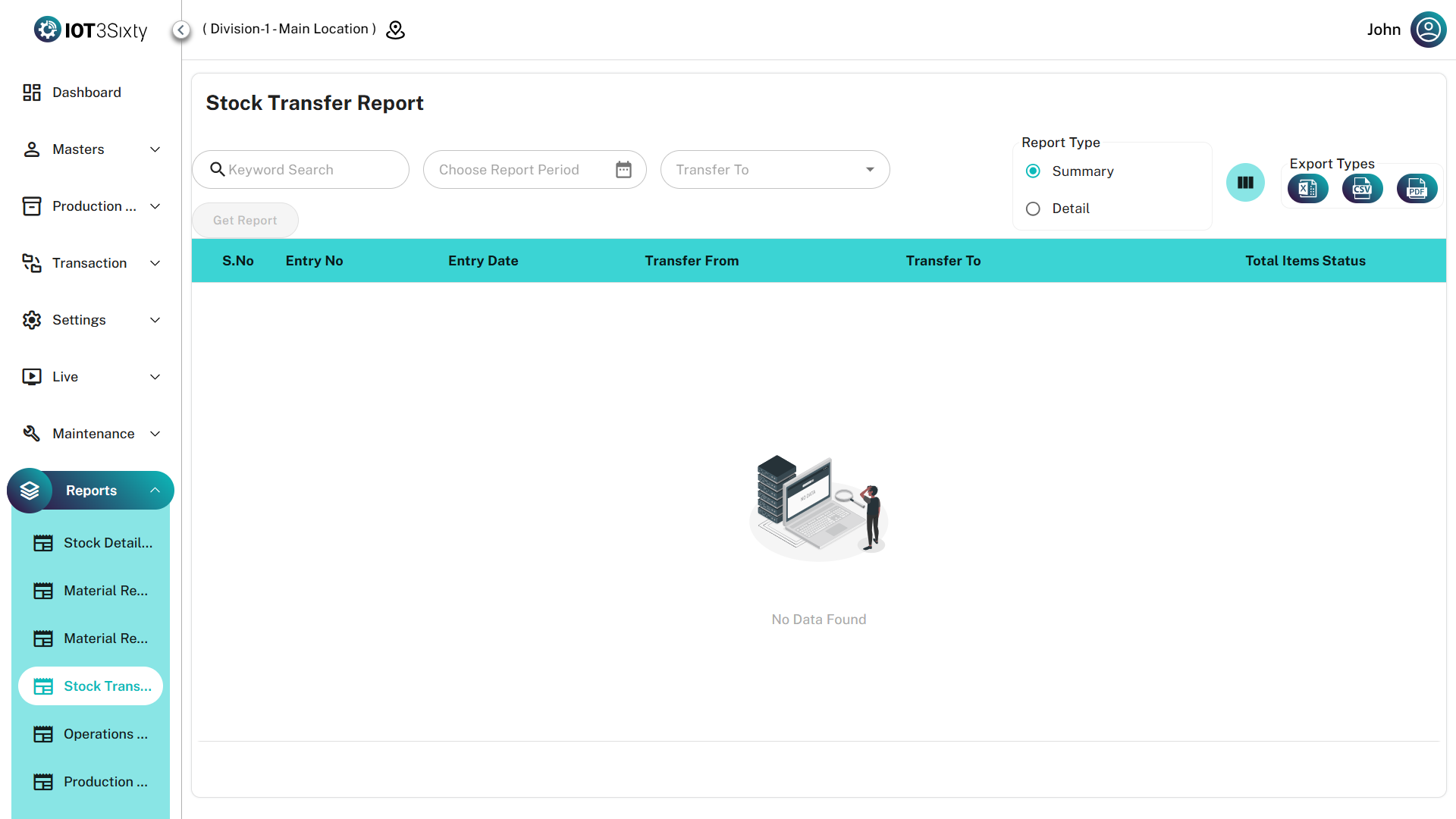
The Stock Transfer Report provides a formal record of inventory movements between different storage locations.
It helps organizations verify internal logistics operations and maintain a clear audit trail for stock re-balancing and internal transfers.
This report is essential for tracking material movements between warehouses, production lines, and storage areas.
Key Features
| Feature | Description |
|---|---|
| Verification Tool | Confirms that stock transfers between source and destination locations were successfully completed |
| Routing Audit | Provides clear visibility of Transfer From and Transfer To locations |
| Summary & Detail Views | Toggle between high-level transfer entries and item-level details |
| Export Options | Download reports in Excel, CSV, or PDF formats |
Data Breakdown
1. Summary View
The Summary View provides high-level information for each stock transfer entry.
| Field | Description |
|---|---|
| Entry No | Unique identifier for the stock transfer |
| Entry Date | Date when the transfer was recorded |
| Transfer From | Source location from which the stock was moved |
| Transfer To | Destination location receiving the stock |
| Total Items | Number of different parts included in the transfer |
| Status | Current transfer state (e.g., Draft, Transferred) |
This view helps users quickly verify shipment activity between locations.
2. Detail View
The Detail View provides a line-by-line breakdown of all transferred items.
| Category | Fields |
|---|---|
| Identification | Part Name, Part Number |
| Quantities | Quantity transferred along with UOM (Unit of Measure) |
| Mapping | Links each item to its Entry Number, source location, and destination location |
This view is useful for auditing exact part quantities transferred between locations.
User Instructions
Follow the steps below to generate the report.
1. Selection
- Choose the Report Period / Date Range.
- Use the Transfer To filter to focus on specific destination locations.
2. Generate Report
Click Get Report to populate the report table with transfer records.
3. Refine the Results
- Use the Search bar to find specific shipments or transfer entries.
- Use the Column Selector to display or hide logistical data fields.
4. Export the Report
Use the export icons in the toolbar to download the report in:
- Excel
- CSV
Use the Summary View for shipment reconciliation and switch to Detail View when auditing specific part quantities transferred between warehouses or production locations.