Bill of Materials (BOM)
The Bill of Materials (BOM) defines the list of raw materials, semi-finished goods, and components required to manufacture a finished product.
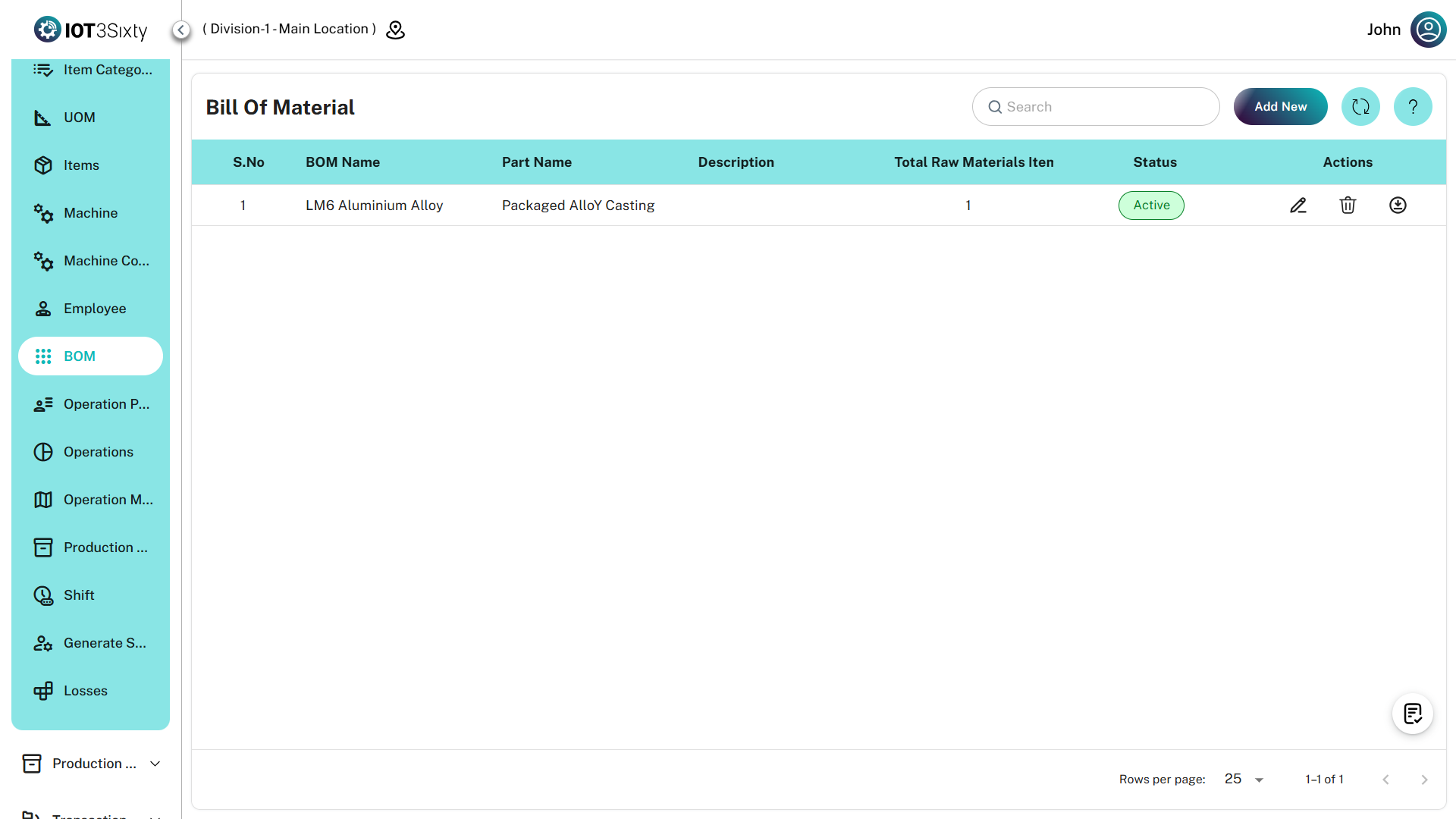
It helps the production team understand:
- What materials are required
- The quantity of materials needed
- The structure of the product during manufacturing
The BOM module allows users to create, manage, and maintain material structures used in production.
Creating a BOM
To create a new BOM:
- Navigate to Masters → Bill of Materials (BOM).
- Click the Add New button.
- The BOM creation form will open.
- Enter the BOM header details.
- Add the material item details.
- Click Save.
Once saved, the BOM can be used in production planning and manufacturing processes.
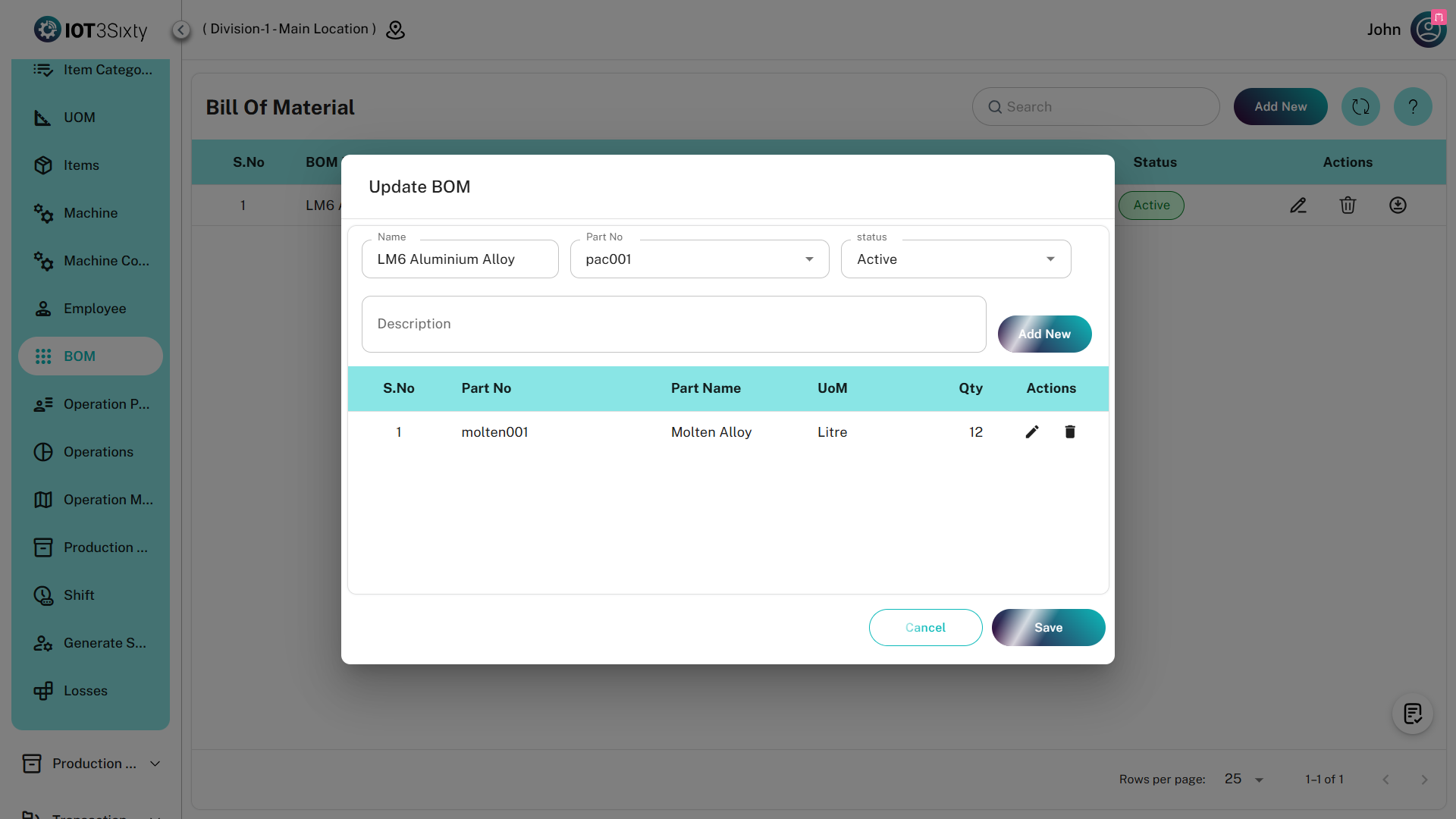
BOM Header Details
The first section of the BOM contains the basic information about the finished product.
Line Name
Select the production line where the product will be manufactured.
Part Number
The unique identification number assigned to the finished product.
Finished Goods
Select the finished product item that will be produced using this BOM.
Description (Optional)
Additional information about the finished product can be provided here.
Description (Optional)
Additional information about the finished product can be provided here.
Quantity
The quantity required to manufacture the finished product.
Saving the BOM
After entering all the materials:
- Verify the BOM details.
- Click Save.
The BOM will now be available for production planning and job card generation.
Managing Existing BOM
Once a BOM is created, users can manage it through different actions available in the BOM list page.
Available actions include:
- Download BOM
- Edit BOM
- Delete BOM
Download BOM
Users can download BOM details for documentation or sharing purposes.
Steps to Download BOM
- Navigate to Production → Bill of Materials (BOM).
- Find the required BOM in the list.
- Click the Download button.
- The system will generate and download the BOM file.
The downloaded file contains:
- BOM header details
- Finished goods information
- Raw material list
- Semi finished goods
- Quantity and UOM details
Edit BOM
If changes are required, the BOM can be modified.
Steps to Edit BOM
- Navigate to Production → Bill of Materials (BOM).
- Locate the required BOM.
- Click the Edit icon.
- The BOM form will open with the existing details.
- Update the required fields.
Users can modify:
- Line Name
- Part Number
- Finished Goods
- Description
- Raw Materials
- Semi Finished Goods
- Quantity
- UOM
- Click Save to update the BOM.
The updated BOM will be used in future production processes.
Delete BOM
If a BOM is no longer required, it can be removed from the system.
Steps to Delete BOM
- Navigate to Production → Bill of Materials (BOM).
- Find the BOM to be deleted.
- Click the Delete icon.
- A confirmation message will appear.
- Confirm the deletion.
Once deleted, the BOM will be permanently removed from the system.
Note: Ensure the BOM is not used in any active production process before deleting it.
Benefits of BOM
Using BOM in MES helps organizations:
- Define product material structure
- Control material usage
- Improve production planning
- Reduce material wastage
- Ensure accurate inventory consumption
Summary
The Bill of Materials (BOM) module helps define and manage the material structure required to manufacture finished products.
It allows users to:
- Create BOMs
- Add raw materials and semi finished goods
- Download BOM details
- Edit BOM configurations
- Delete unused BOMs