CAPA (Corrective Action & Preventive Action)
The CAPA module is used to identify, investigate, and resolve issues that occur during production.
A CAPA is typically created when there is a gap between planned production and actual production results, or when significant downtime events affect production performance.
This module provides a structured workflow to assign responsibility, track corrective actions, and implement preventive measures.
1. CAPA Dashboard
The CAPA dashboard serves as the central location for monitoring all open and closed CAPA records.
Key Features
| Feature | Description |
|---|---|
| Search & Filter | Find CAPAs using CAPA number, production line, or order |
| Refresh | Retrieve the latest CAPA updates and status changes |
| Create CAPA | Create a new CAPA record (restricted to authorized users such as supervisors) |
Dashboard Fields
| Field | Description |
|---|---|
| CAPA No | Unique identification number for the CAPA |
| Production Context | Associated Production Line, Production Order, and Batch |
| Planned Qty | Planned production quantity |
| Actual Qty | Actual production quantity achieved |
| Gap | Difference between planned and actual quantities |
| Age | Time duration since the CAPA was created |
| Status | Current stage of the CAPA |
Actions
| Action | Description |
|---|---|
| Reply | Open the resolution screen where assigned persons record actions taken |
| Edit | Modify CAPA details (available to the creator or supervisor) |
| Delete | Remove the CAPA record (available only to the creator) |
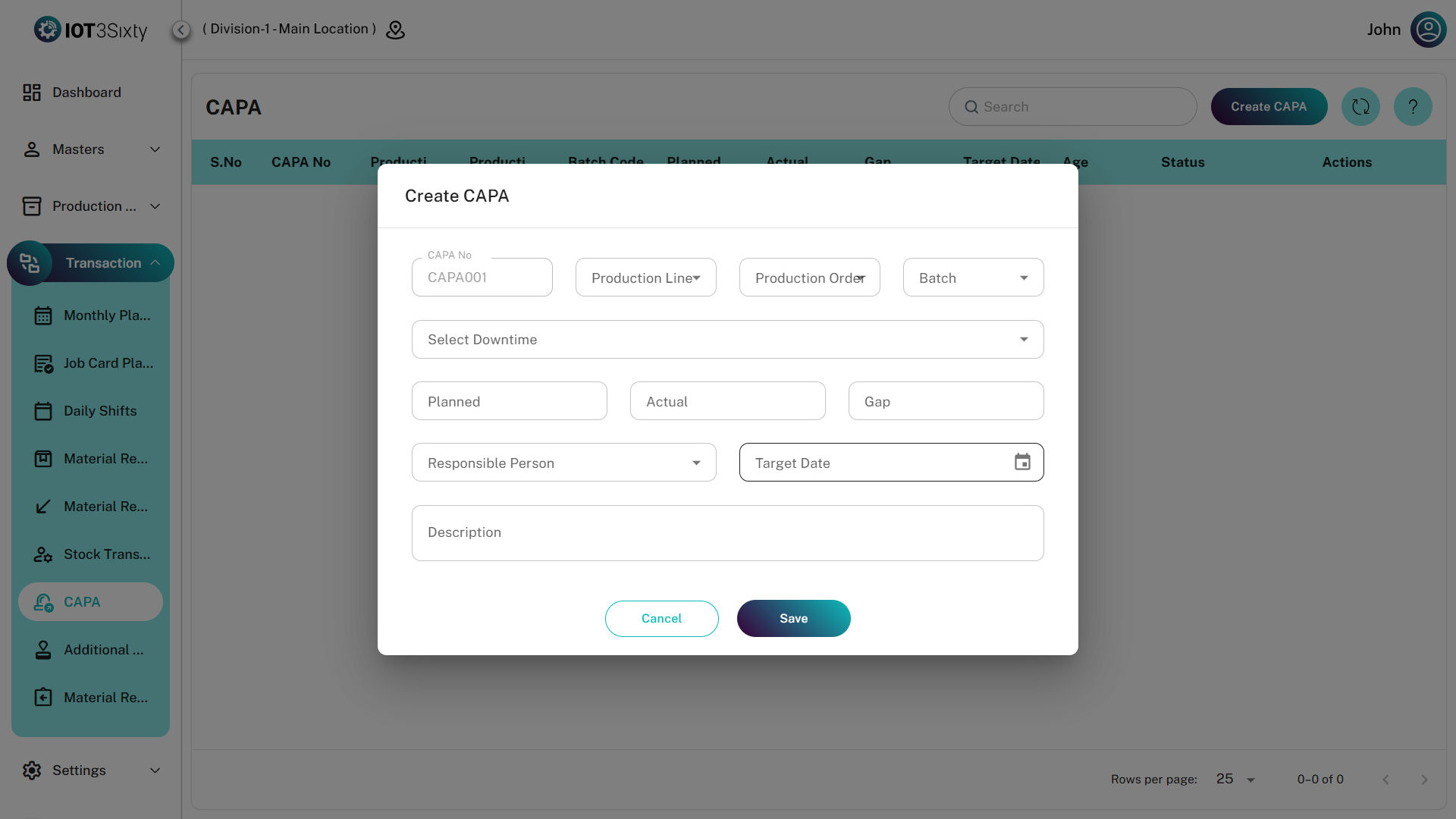
2. Creating a CAPA
A CAPA should be created whenever a production gap or operational issue is identified.
Step 1: Link to Production Context
| Field | Description |
|---|---|
| CAPA No | Auto-generated based on system sequence |
| Production Line | Select the production line where the issue occurred |
| Production Order | Choose the related production order |
| Batch | Select the affected batch |
Optional: Link Downtime Events
You may link the CAPA to specific downtime records.
| Feature | Description |
|---|---|
| Select Downtime | Attach one or more downtime events that contributed to the production gap |
Step 2: Define the Gap
| Field | Description |
|---|---|
| Planned Qty | Target quantity planned for production |
| Actual Qty | Quantity actually produced |
| Gap | Automatically calculated by the system (Planned - Actual) |
| Description | Detailed explanation of the problem identified |
Step 3: Assignment
| Field | Description |
|---|---|
| Responsible Persons | Select one or more employees responsible for investigating the issue |
| Target Date | Deadline for completing the corrective action |
3. CAPA Reply & Resolution Workflow
After a CAPA is assigned, the responsible person must document the investigation and resolution steps.
View Master Details
The reply screen first displays a read-only summary of the CAPA:
| Field | Description |
|---|---|
| Planned Qty | Original planned production |
| Actual Qty | Actual production achieved |
| Gap | Calculated production difference |
| Status | Current CAPA status |
Adding a Resolution (Reply)
Click the Reply/Edit icon next to the responsible person to log actions taken.
| Field | Description |
|---|---|
| Corrective Action | Action taken to resolve the immediate problem |
| Preventive Action | Steps implemented to prevent the issue from recurring |
Managing Status
| Status | Description |
|---|---|
| Closed | Marks the CAPA as resolved and completed |
| Re-assigned | Assign the CAPA to another person for further investigation |
When Re-assigned, the user must select:
- New Responsible Person
- Updated Target Date
4. CAPA Status Definitions
| Status | Description |
|---|---|
| Assigned | CAPA created and assigned to responsible person |
| Re-assigned | Responsibility transferred to another team member |
| Completed | Corrective and preventive actions recorded |
| Closed | Issue fully resolved and CAPA finalized |
The Actual production quantity cannot exceed the Planned quantity when creating a CAPA.
If actual production exceeds planning, a CAPA may not be the appropriate transaction type.