Production Order & Work Order
The Production Order serves as the blueprint for manufacturing operations. It defines what needs to be produced, how much, and by when.
This is a critical bridge between Sales Orders (demand) and Work Orders (execution).
A Production Order can be:
- Automatically generated from a Sales Order, or
- Manually created within the MES system for internal or ad-hoc production needs.
It provides the production team with all necessary details to plan material requirements, allocate resources, and set timelines for manufacturing.
Production Order Overview
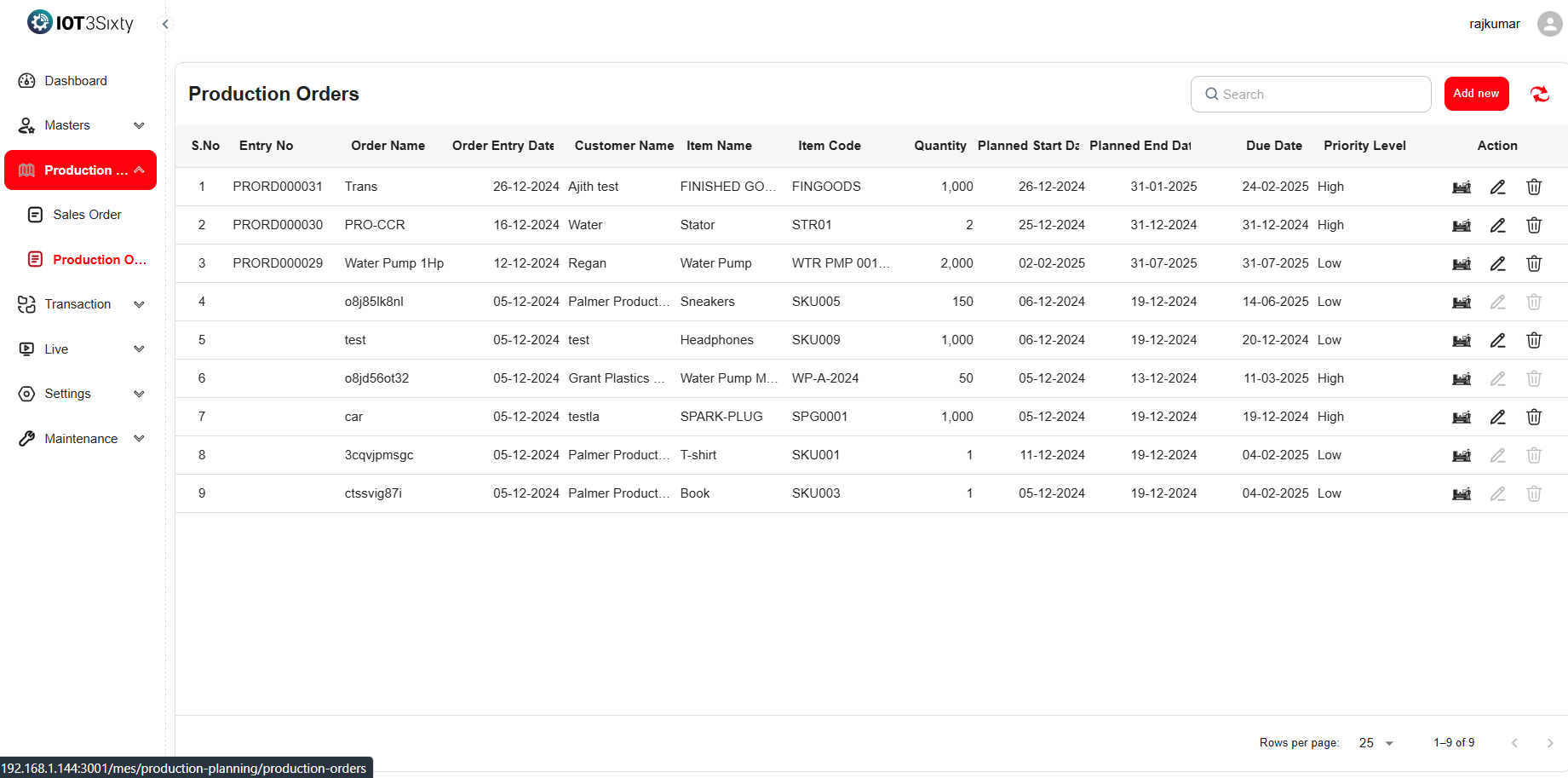
Each Production Order contains essential fields that define its scope, timeline, and status.
| Field | Description |
|---|---|
| Entry No | A system-generated unique identifier for tracking the production order. |
| Order Name | A descriptive name representing the production batch or order. |
| Order Entry Date | The date the production order was created. |
| Customer Name | Identifies the customer associated with this order (if applicable). |
| Item Name and Code | Specifies the product to be manufactured, linked to the Item Master. |
| Quantity | The total number of units planned for production. |
| Planned Start Date | The target date to begin production activities. |
| Planned End Date | The date by which production should be completed. |
| Due Date | The delivery or completion deadline for the production order. |
| Priority Level | Indicates the urgency or importance (e.g., High, Medium, Low). |
| Action Buttons | Functional buttons for user actions on each order. |
Action Buttons Explained
| Action | Description |
|---|---|
| Generate | Converts the production order into a Work Order for execution. |
| Edit | Allows modification of order details such as dates, priority, or quantity. |
| Delete | Removes the production order from the system (admin-level access only). |
These actions enable flexibility in managing production schedules, especially when dealing with dynamic manufacturing environments.
Manually Adding a Production Order
Sometimes, production orders may not originate from a Sales Order.
In such cases, authorized users can manually add a production order directly through the MES interface.
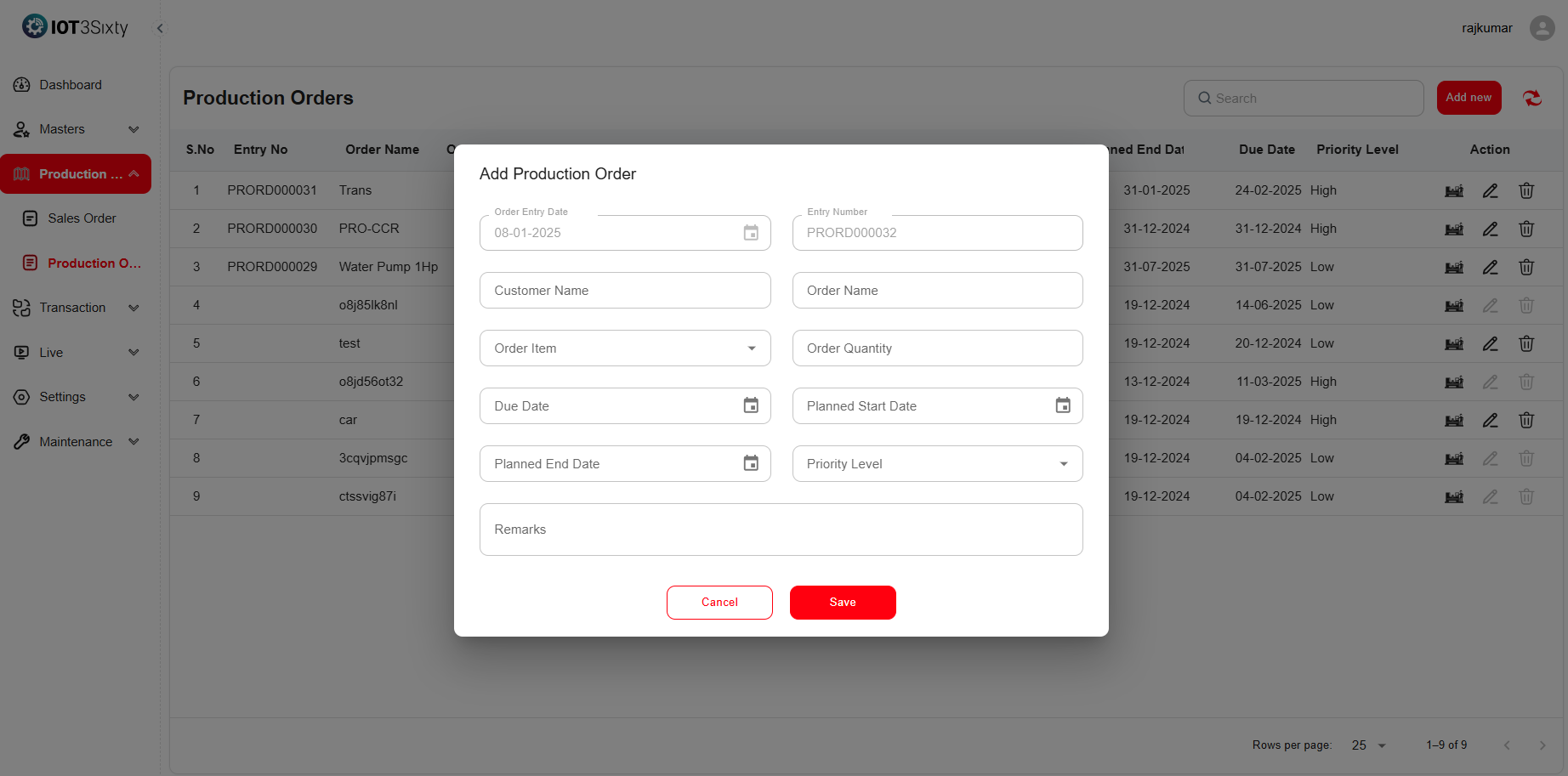
Steps to Add a New Production Order Manually:
- Navigate to the Production Order section from the Production Planning menu.
- Click the Add New button.
- Enter the following details carefully:
- Customer Name – The customer associated with this order (optional for internal jobs).
- Order Name – A unique name identifying the order or batch.
- Order Item – The product to be produced (choose from available items).
- Order Quantity – The total number of units required.
- Due Date – The final deadline for order completion.
- Planned Start Date – The scheduled start date for production.
- Planned End Date – The estimated date to finish production.
- Priority Level – Select the urgency (High / Medium / Low).
- Remarks – Optional notes or comments about special instructions.
- Click Save to add the Production Order to the system.
Once saved, the Production Order becomes available in the Production Order List, where it can later be converted into a Work Order.
Benefits of the Production Order Module
- Centralized Planning: Provides a clear view of all upcoming production activities.
- Seamless Transition: Links directly with Sales Orders for smooth data flow.
- Efficient Scheduling: Helps plan material usage, machine allocation, and manpower.
- Traceability: Tracks every order from creation to execution for complete visibility.
- Flexibility: Allows manual addition, edits, and controlled deletions when needed.
2.3 Work Order
The Work Order represents the execution phase of the production process.
Once a Production Order is finalized, it is converted into one or more Work Orders, which break down production into manageable tasks for specific machines, operators, or shifts.
The Work Order ensures that manufacturing activities are planned, assigned, tracked, and completed systematically.
Work Order Overview
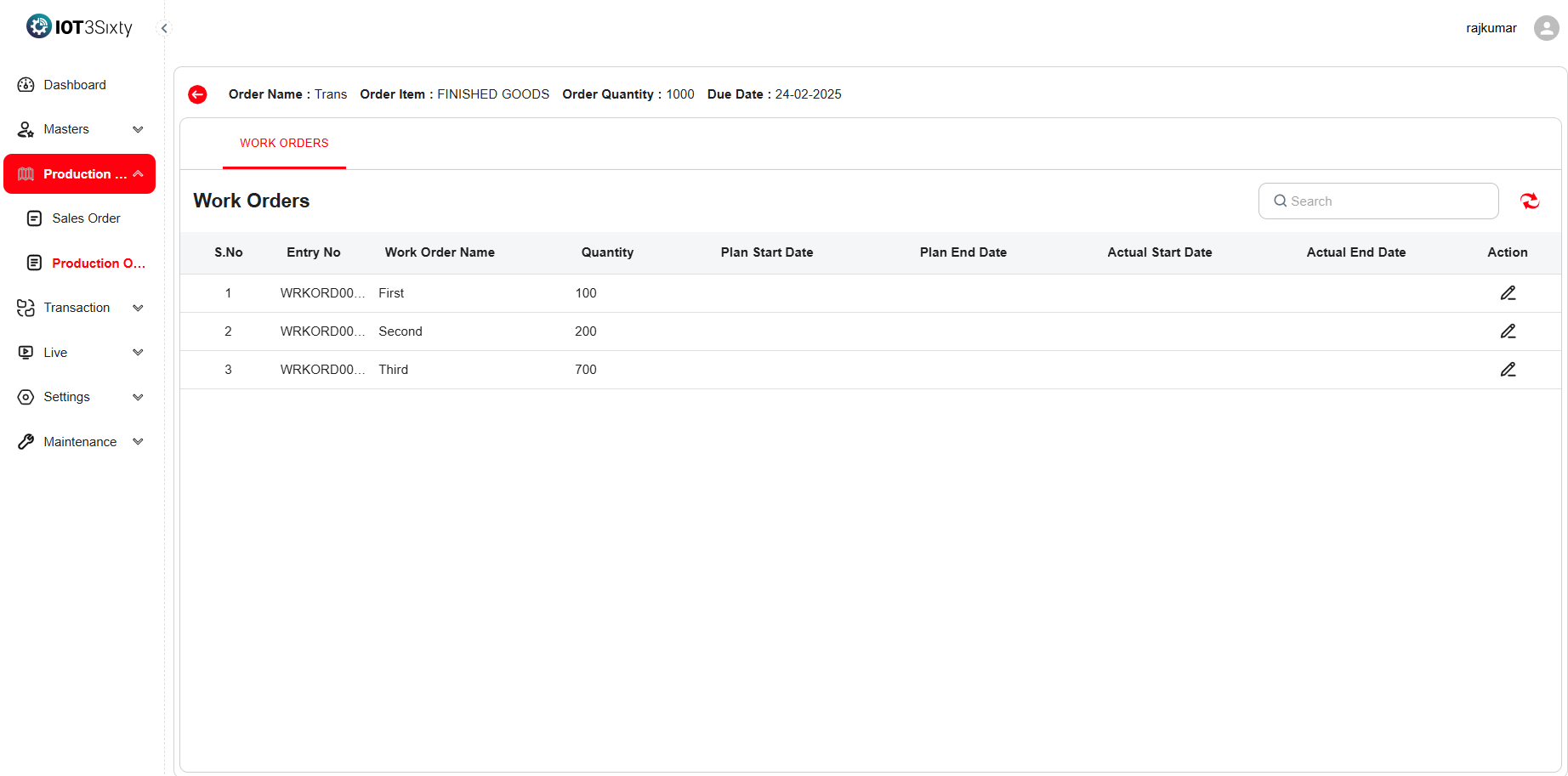
| Field | Description |
|---|---|
| Entry No | Unique identifier for tracking each work order. |
| Work Order Name | A name or code representing the work order. |
| Quantity | The number of units to be produced under this work order. |
| Planned Start Date | The date when the work is scheduled to begin. |
| Planned End Date | The expected completion date for the task. |
| Actual Start Date | The real date when production starts on the shop floor. |
| Actual End Date | The date when production is completed. |
| Action Buttons | Allows modification and monitoring of the work order. |
Steps to Generate a Work Order
- Go to the Production Order section.
- Locate the desired Production Order for which you want to create a work order.
- Click the Generate button next to it.
- The system automatically generates a Work Order based on the Production Order details (item, quantity, and planned dates).
- Once generated, navigate to the Work Order section to view or edit details.
- Use the Edit button if you need to adjust:
- Actual Start Date
- Actual End Date
- Quantity Adjustments (if partial completion)
- Save the updates to maintain accurate production tracking.
Purpose of the Work Order
- Defines Execution Scope: Specifies what part of the production order is being executed.
- Tracks Real-Time Status: Monitors actual progress on the shop floor.
- Links to Operators & Machines: Each work order can be associated with specific resources.
- Provides Traceability: Maintains a link between production order → work order → final output.
Benefits of Work Order Management
- Improved Resource Allocation: Assigns specific tasks to workers and machines efficiently.
- Enhanced Productivity Tracking: Monitors completion rates and actual working times.
- Real-Time Visibility: Updates production managers on current job progress.
- Error Reduction: Minimizes confusion and duplication in manufacturing activities.
- Data Accuracy: Ensures that production data aligns with real execution timelines.
Overall Process Flow
- Sales Order Created – Customer demand captured.
- Production Order Generated – Manufacturing plan defined.
- Work Order Created – Specific tasks assigned and executed.
- Production Tracking – Actual vs. planned comparison.
- Completion & Reporting – Performance measured and recorded.
This hierarchy ensures structured planning, precise execution, and complete visibility across all stages of the production process.