Employee Master
The Employee Master module is a centralized record of all employees associated with the production process.
It maintains comprehensive details such as their roles, departments, hourly costs, and status, which are vital for effective workforce management, labor cost tracking, and resource allocation.
This module ensures that every employee involved in the MES workflow is properly identified, categorized, and assigned relevant permissions or tasks according to their role.
Purpose
The Employee Master serves several key functions:
- Maintains an organized record of all employees across various departments.
- Links employees with their operational roles (e.g., Operator, Supervisor, Engineer).
- Helps in tracking labor costs by defining hourly rates for each employee.
- Supports efficient resource planning and production cost analysis.
- Enables quick updates to employee status (Active/Inactive) based on employment or assignment changes.
Viewing and Managing Employee Details
- Navigate to the Employee Master section from the MES Dashboard.
- The system displays a structured list of employees along with key details including:
- Employee Name – The full name of the employee.
- Role – Defines the employee’s position or responsibility in the production process (e.g., Operator, Supervisor, Maintenance Engineer).
- Department – Indicates the department or section the employee belongs to (e.g., Production, Quality, Maintenance).
- Hourly Cost – Represents the cost of labor per hour for the employee, useful for calculating job or batch costs.
- Status – Shows whether the employee is currently Active or Inactive in the system.
Editing or Adding Employee Information
- Go to the Employee Menu.
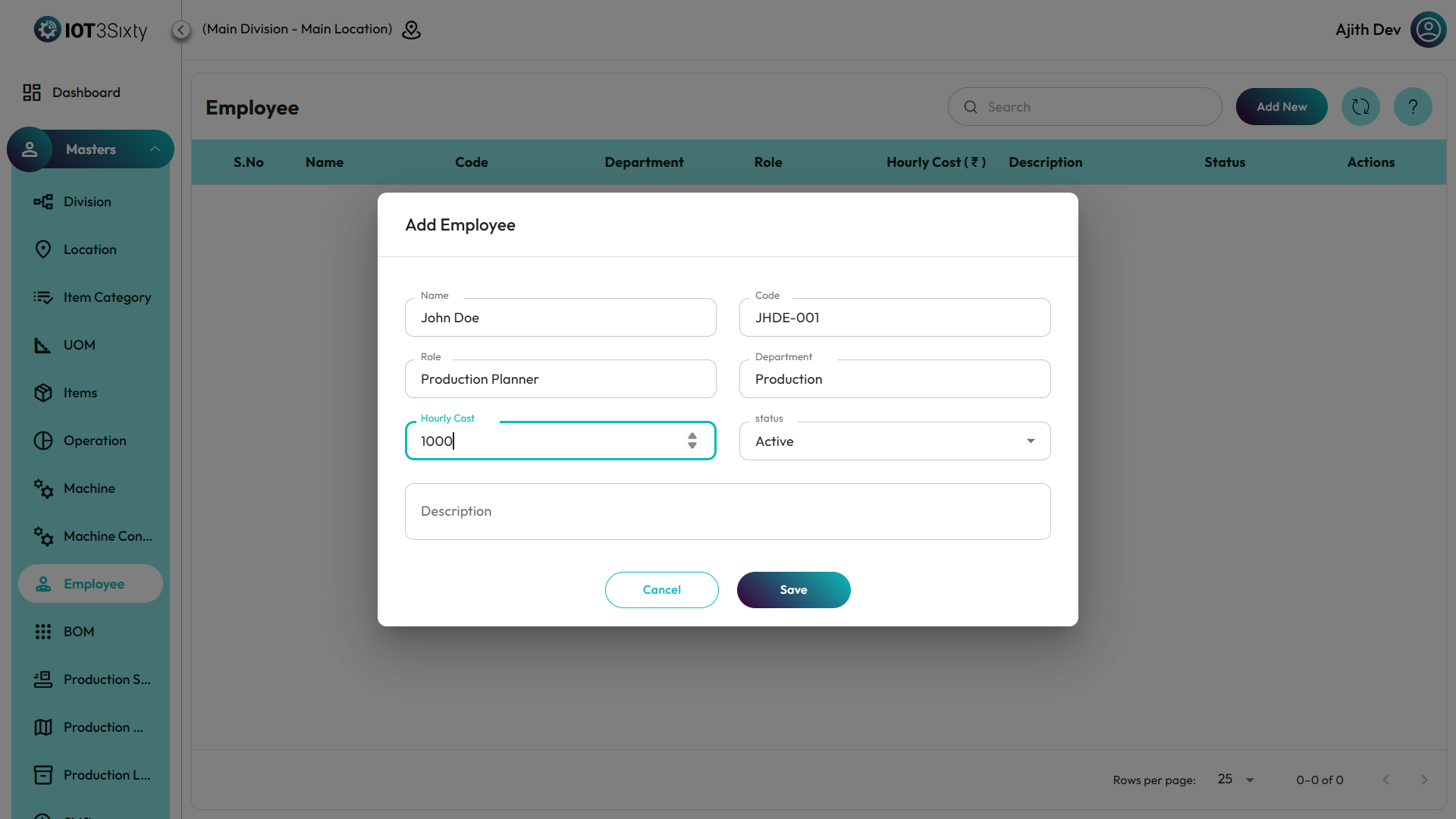
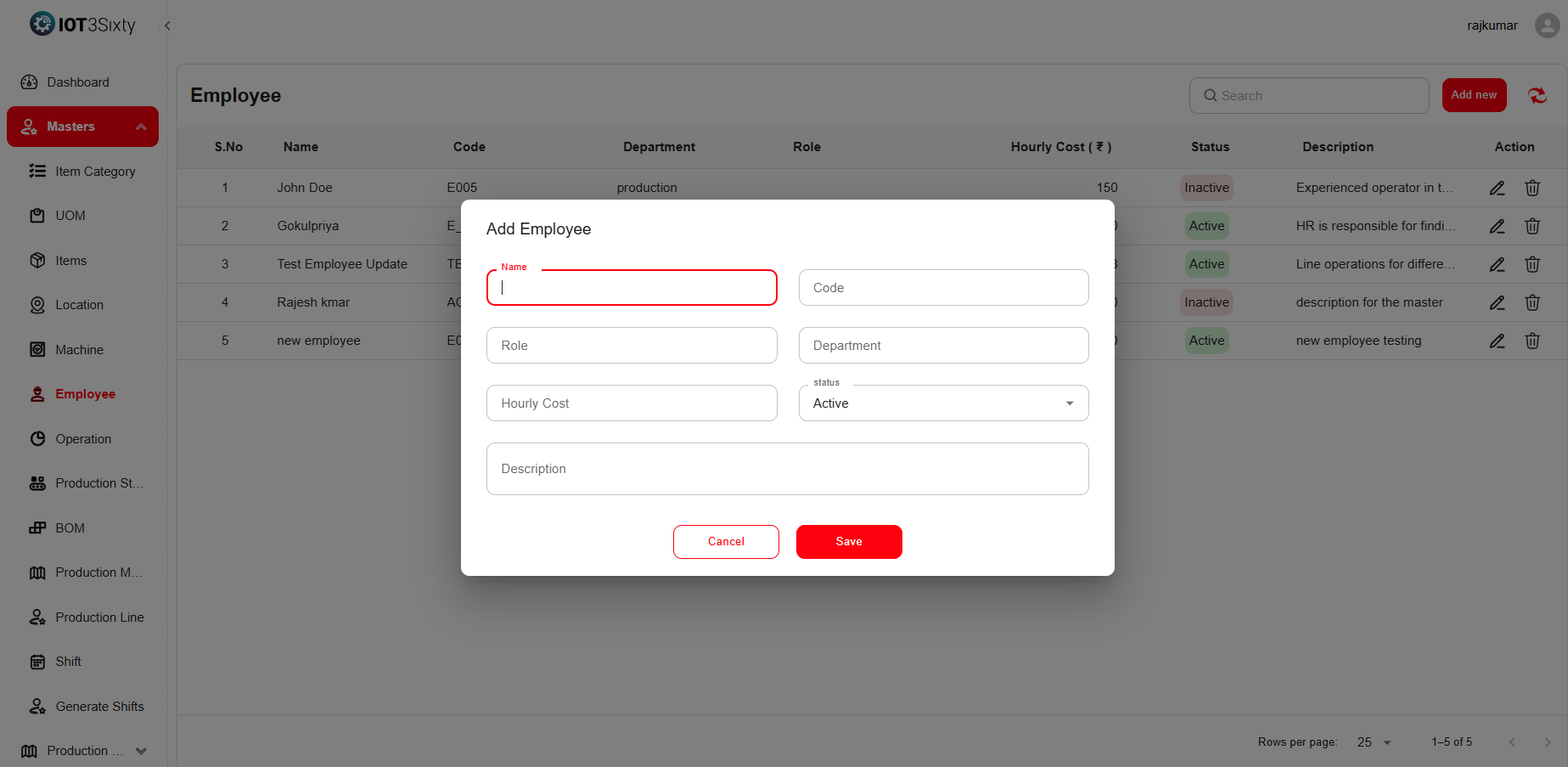
- Select Add New to open the Employee Creation Form.
- Fill in the following details:
- Employee Name – Enter the full name of the employee.
- Role – Select the appropriate role from the dropdown list.
- Department – Choose the department the employee belongs to.
- Hourly Cost – Specify the hourly wage or labor rate.
- Status – Set the employee’s current status as Active or Inactive.
- Click Save to finalize and store the employee’s information in the system.
Example View
Below is a sample representation of the Employee Master interface:
Key Notes
- Only authorized users can add or modify employee details.
- The Hourly Cost field is used in production costing and job tracking calculations — ensure it reflects accurate wage data.
- Inactive employees will not appear in operational assignments or job scheduling lists.
✅ Tip:
Regularly review and update employee records to ensure the MES reflects the current workforce structure and cost details accurately.