Bill Of Material (BOM)
The Bill of Materials (BOM) module defines the complete list of raw materials, components, and sub-assemblies required to manufacture a finished product.
It serves as the backbone of the production process, ensuring all necessary materials are clearly identified and linked to the final product for accurate manufacturing, costing, and inventory control.
A properly structured BOM ensures consistency in production, helps in resource planning, and supports accurate cost tracking within the MES system.
Purpose
The BOM (Bill of Materials) is crucial for:
- Defining the relationship between finished goods and raw materials.
- Establishing the quantities and cost contributions of each component.
- Assisting in production planning, material requirement planning (MRP), and cost estimation.
- Maintaining consistency and traceability in manufacturing operations.
Key Features
- Defines component dependencies for each finished product.
- Enables cost breakdown and resource requirement calculations.
- Supports multi-level BOMs for complex assemblies.
- Ensures data synchronization between Item Master and Inventory modules.
- Facilitates smooth planning, procurement, and production processes.
Viewing and Managing BOM Details
- Navigate to the BOM Master section from the MES Dashboard.
- The system displays a list of existing BOMs with key details such as:
- Item Name – The finished product for which the BOM is defined.
- Component Item Names – The list of raw materials or parts required to manufacture the finished good.
- Quantity Needed – Specifies the quantity of each raw material needed per unit of finished product.
- Cost Details – Displays the cost impact of each component.
- Status – Indicates whether the BOM is currently Active or Inactive.

Creating a New BOM
- Navigate to the BOM Menu.
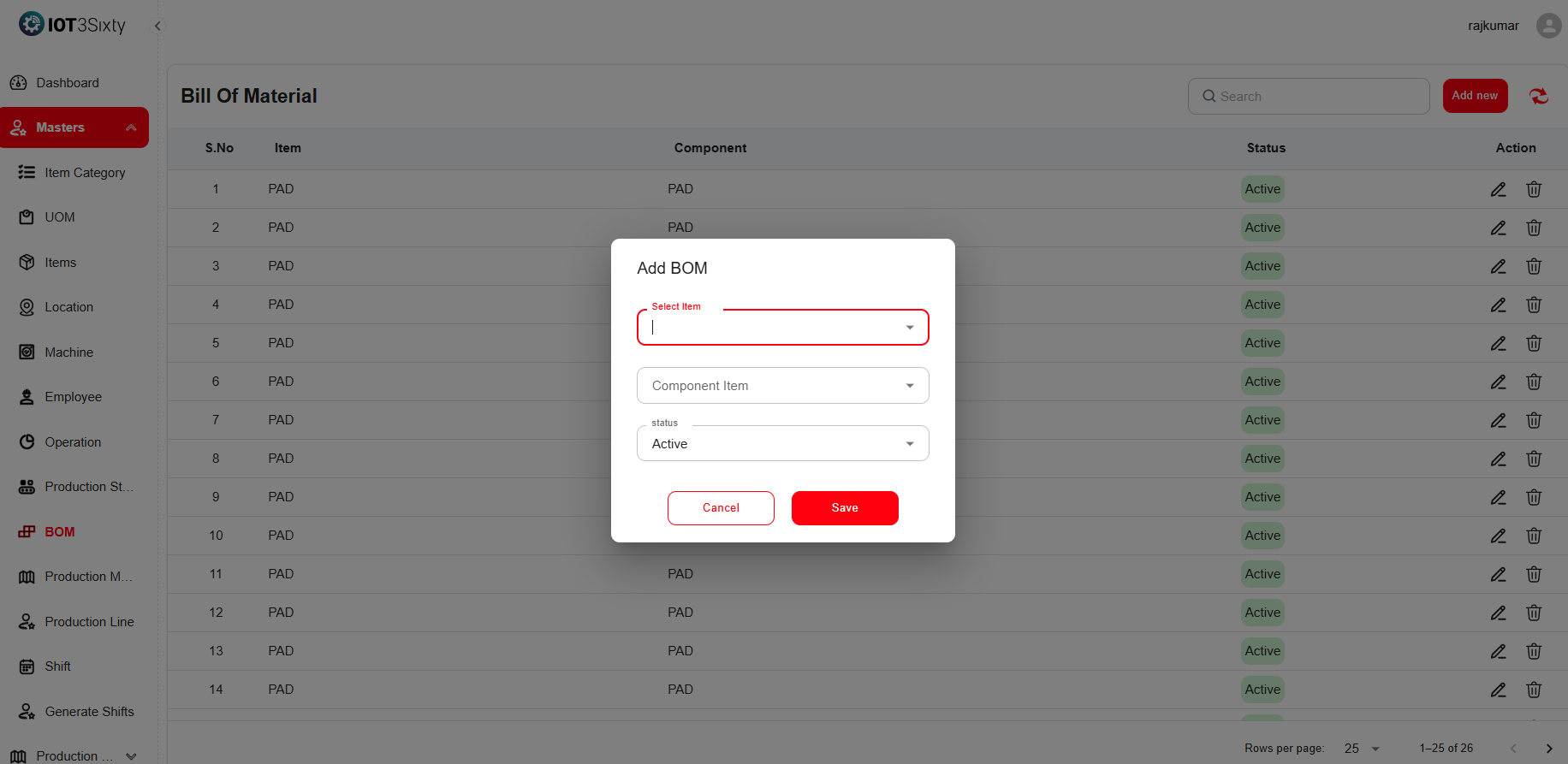
- Click Add New to open the BOM Creation Form.
- Fill in the following fields:
- Item (Finished Good) – Select the finished product from the list of items. This represents the main product to be produced.
- Component Items (Raw Materials) – Choose the raw materials or sub-components required for the selected finished good.
- Status – Choose Active or Inactive depending on whether the BOM should be available for use in production.
- Click Save to finalize and store the BOM details.
Example View
Below is an example of the BOM Master interface:
Key Notes
- Only finished goods should be selected as the main item, while raw materials are chosen as component items.
- Ensure all component items exist in the Item Master before creating a BOM.
- Setting the Status to Active makes the BOM usable in production; Inactive BOMs are excluded from planning.
- Updating a BOM automatically affects material planning and cost structures.
✅ Tip:
Before creating a BOM, verify that all raw materials are properly defined in the Item Master and that quantities align with real production needs. This ensures accurate cost and inventory control throughout the manufacturing process.