Location
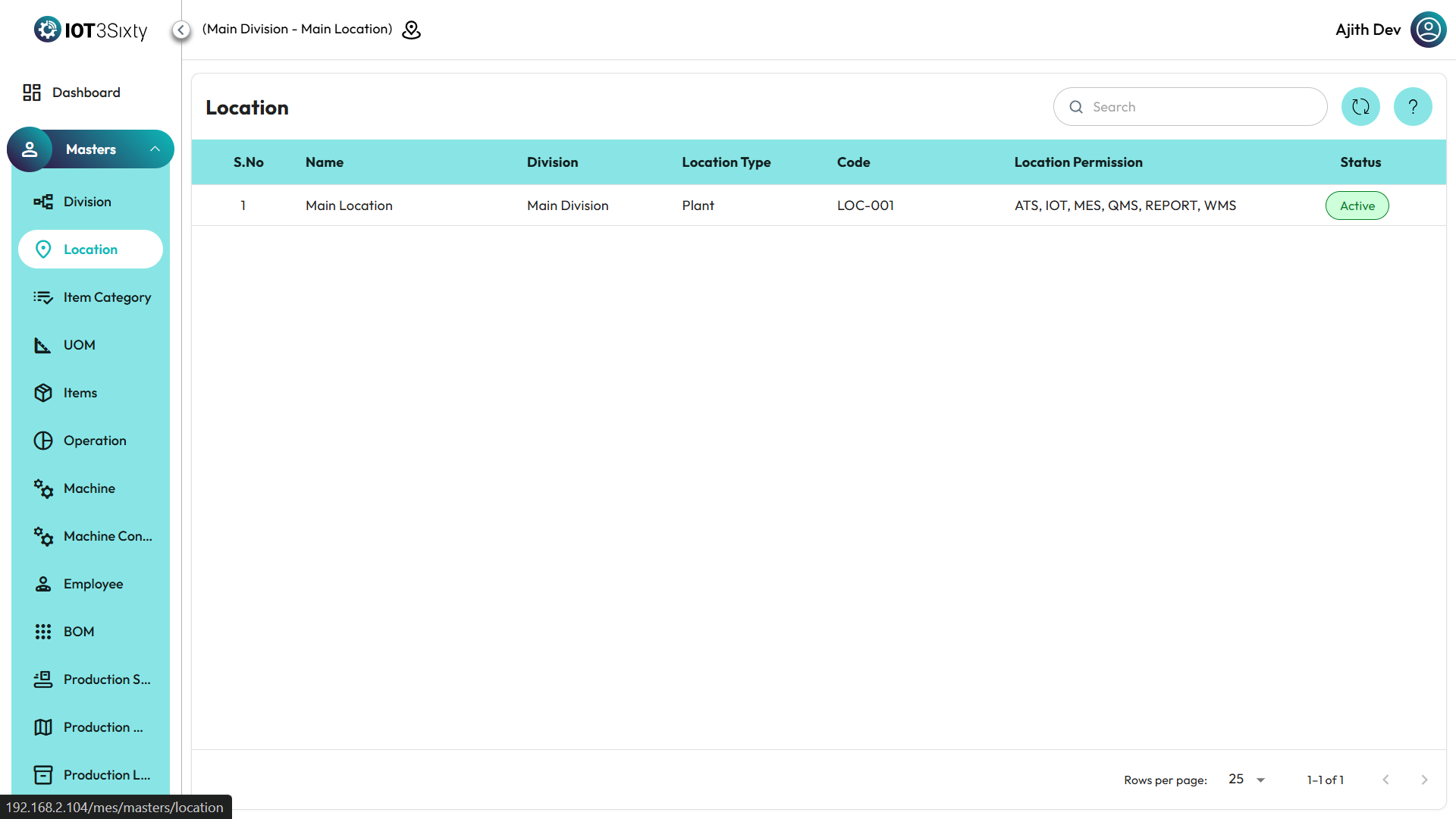
- On the top-left corner of the MES Dashboard, you will find the Location Icon.
- Click the Location Icon to view the list of available locations.
- Choose the required location from the dropdown list.
- Once selected, the system will display the details related to that location.
Location Details Displayed
Each location includes the following information:
- Division Name – The name of the division linked to this location.
- Location Type – Indicates the type of location (e.g., Plant, Factory, Warehouse).
- Location Permission – The access level or permission assigned for that location.
- Code – The unique identification code for the location.
- Status – Shows whether the location is Active or Inactive.
Additional Options
- You can refresh the location list** anytime using the **Refresh Icon**.
- The list automatically updates based on available permissions and data access levels.
- Selecting a location ensures that all subsequent modules display data relevant to that specific location.
✅ Tip: Always confirm the active location before performing actions such as creating items, managing divisions, or viewing reports.