Location Receive Report
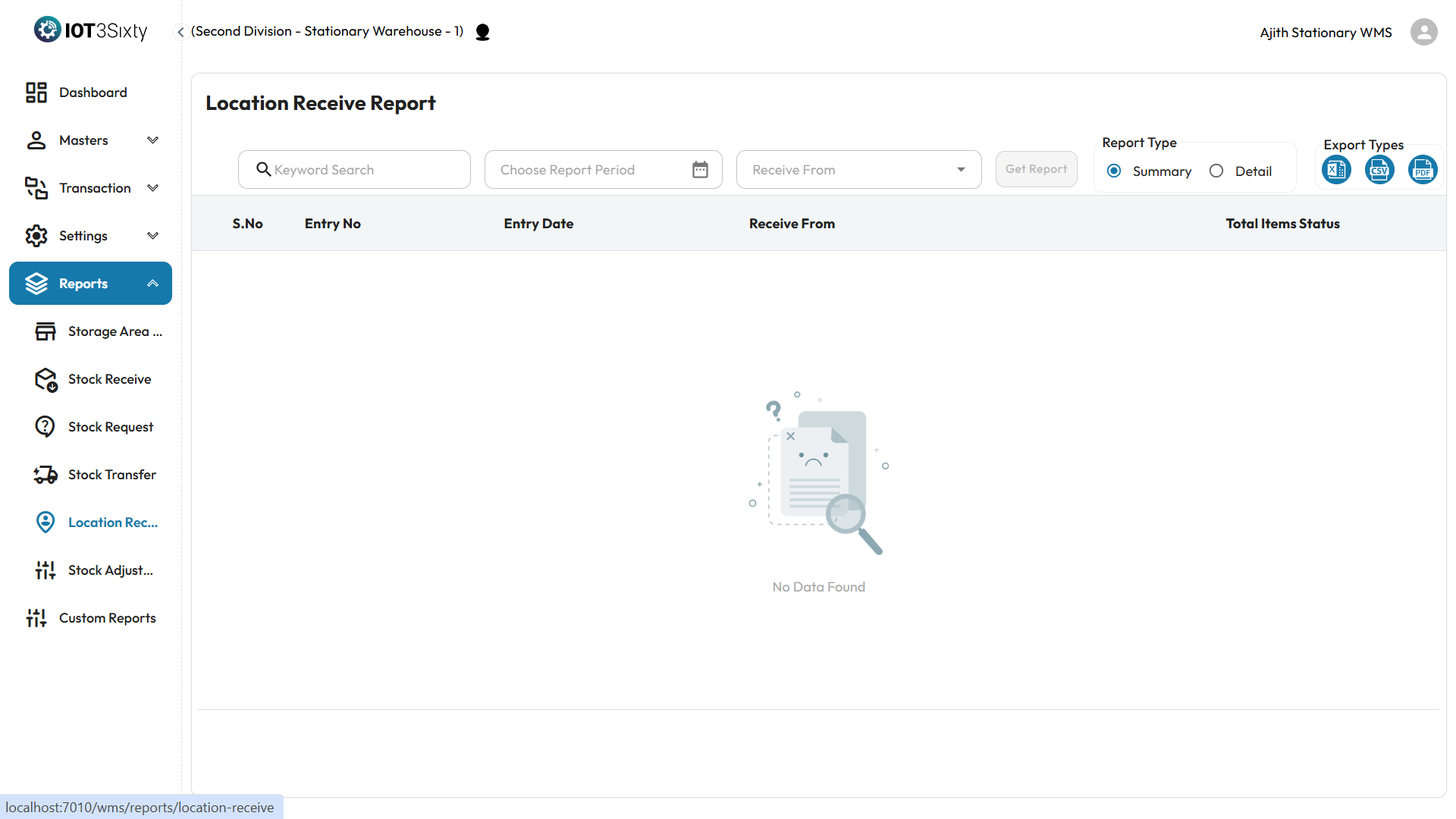
The Location Receive Report allows users to generate comprehensive inventory reports based on selected filters, offering both summary and detailed views of stock movements. This report is essential for inventory tracking, auditing, and operational decision-making.
Key Features
- View stock received across selected periods and locations.
- Choose between summary and detailed formats.
- Export reports to PDF, CSV, or Excel for further analysis or sharing.
- PDF Preview option available before downloading.
How to Generate a Stock Report
-
Keyword Search
- Use the search box to filter items based on keywords such as item name, code, or category.
-
Select Report Period
- Define the start and end dates to specify the reporting period.
-
Choose 'Receive From'
- Select the source (such as vendor or location) from which the stock was received.
-
Select Report Type
- Choose one of the following:
- Summary – Displays total quantities per item or category.
- Detail – Shows line-level transaction information including GRNs, dates, and locations.
- Choose one of the following:
-
Click 'Get Report'
- The system will generate and display the report based on your filters.
Export & Preview Options
Once the report is generated:
- Use the PDF Preview to review the report before exporting.
- Export in your preferred format:
- PDF – for formal sharing or printing.
- CSV / Excel – for data analysis or integration into other systems.
Why It Matters
- Enables accurate stock tracking for received inventory.
- Supports warehouse performance evaluation.
- Helps identify discrepancies or delays in stock inflow.
Ensure filters are set accurately for meaningful results. The stock report provides critical insight into warehouse operations and supports inventory reconciliation.