UOM (Unit of Measurement) Setup
The UOM Setup allows you to define standard units used for measuring and managing inventory or item quantities. Examples include "Kilogram", "Liter", "Piece", etc.
Steps to Create a UOM
1. Navigate to the UOM Module
- Go to the Admin Panel or Onboard Process and select UOM.
- You will be redirected to the UOM Management screen.
2. Click the "Add New" Button
- Click on the Add New button to open the UOM Creation Form.
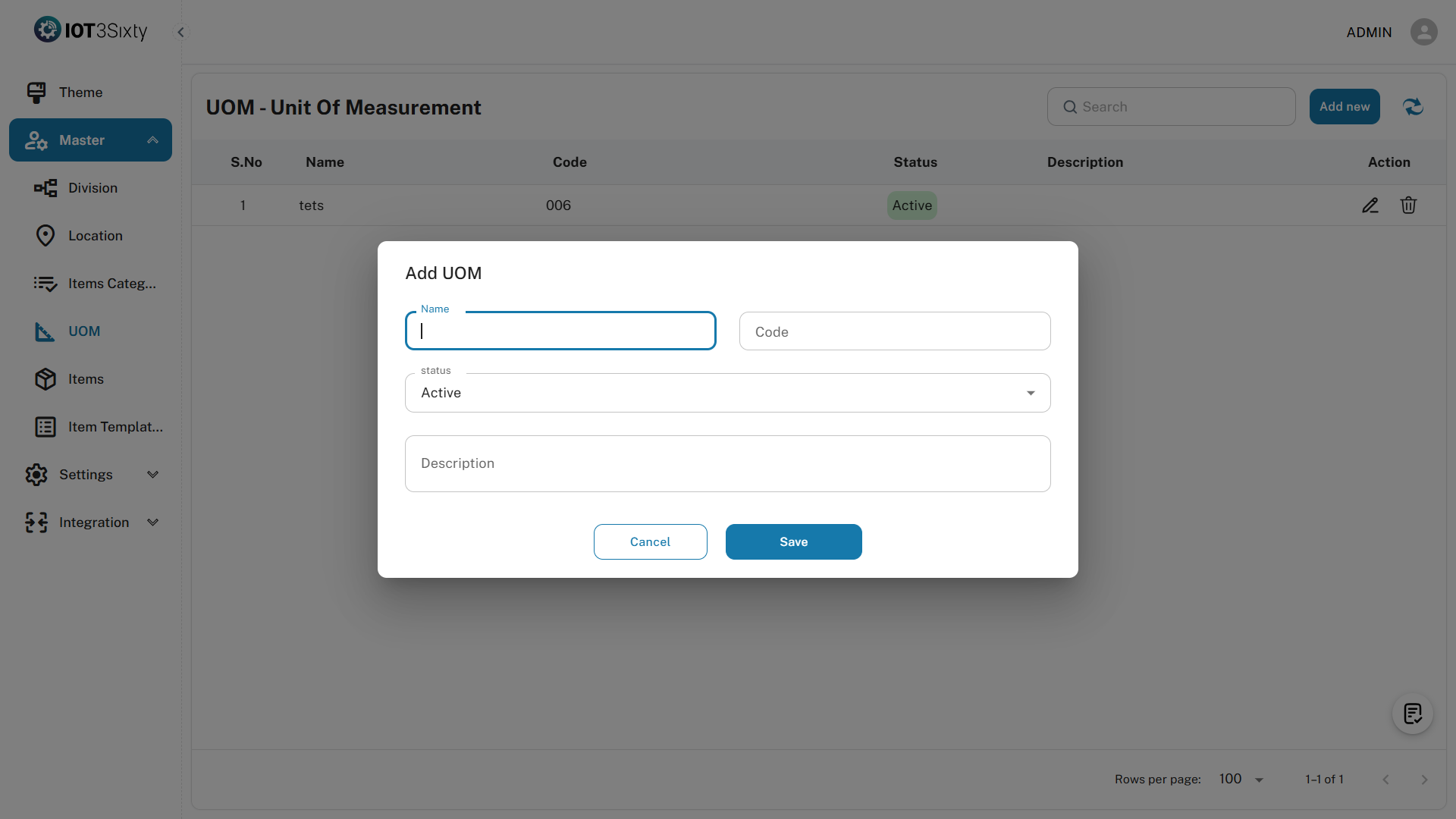
3. Fill in the UOM Details
| Field | Description |
|---|---|
| UOM Name | Enter the full name of the unit (e.g., "Kilogram") |
| UOM Code | Provide a short code (e.g., "KG") |
| Status | Select whether the UOM is Active or Inactive |
| Description | (Optional) Add any additional context or notes about the UOM |
4. Save the UOM
- Click the Save button to create the UOM.
- On successful creation, a confirmation message will be displayed:
UOM CREATED SUCCESSFULLY
Checklist Behavior
- If UOM creation is part of your onboarding flow:
- The checklist will automatically mark the UOM step as Completed once at least one UOM is created.
Notes
- UOM names and codes must be unique within the system.
- Inactive UOMs will not be available during item or inventory creation.
- Descriptions help provide clarity for non-standard units.