SMTP Configuration
The SMTP (Simple Mail Transfer Protocol) setup allows the system to send emails such as password resets, user notifications, alerts, and onboarding messages.
Proper configuration of SMTP is essential for communication between the application and its users.
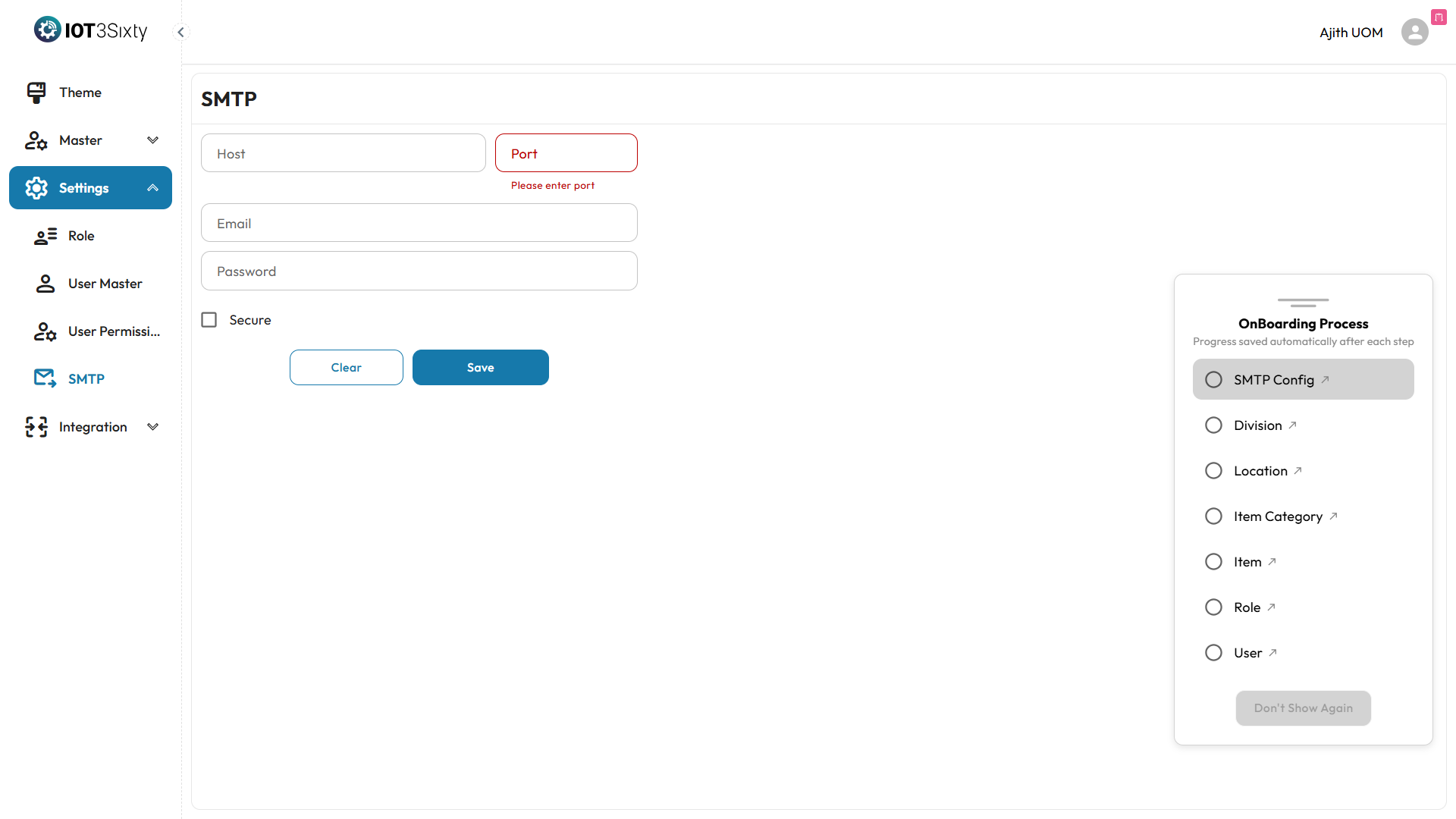
Steps to Configure SMTP
-
Navigate to Admin Settings
- After login, open the left-side menu.
- Select Settings and then choose SMTP Configuration.
-
Enter SMTP Server Details
- SMTP Host: Enter your email provider’s SMTP server (e.g.,
smtp.gmail.com,smtp.office365.com). - SMTP Port: Common ports are:
- 587 for TLS (recommended)
- 465 for SSL
- 25 for non-encrypted
- From Email Address: Enter the email address from which emails will be sent.
- Sender Name: The name that will appear in the sender field (e.g., "Admin Support").
- SMTP Host: Enter your email provider’s SMTP server (e.g.,
-
Authentication Details
- Username: The email account username (often the email address itself).
- Password / App Password: Use the email account password or an app-specific password if two-factor authentication is enabled.
-
Enable Security Protocol
- Choose between:
- TLS (recommended)
- SSL
- None (not recommended for production)
- Choose between:
-
Test SMTP Configuration
- Click the Test Connection or Send Test Email button to verify the setup.
- A test email will be sent to confirm that the configuration is working.
-
Save Configuration
- Once the test is successful, click Save to apply the SMTP settings.
Notes
- Ensure that the SMTP credentials are valid and the sending email is authorized to send from the SMTP server.
- If using Gmail, ensure "Less secure apps" is enabled or use an app password.
- Firewall or server restrictions may block SMTP ports. Make sure the relevant ports are open.
Onboard Checklist Auto-Completion
After you successfully save a valid SMTP configuration:
- The SMTP Configuration step in the Onboard Process panel will be automatically marked as complete.
- The system verifies the test connection before updating the checklist.
- This allows you to proceed to the next configuration step (e.g., Division Setup) in the onboarding sequence.
Notes
- Ensure the SMTP credentials are valid and permitted to send emails.
- For providers like Gmail, app-specific passwords may be required.
- SMTP port and security settings must match your provider's specifications.