User Permission Setup
The User Permission setup allows administrators to control access for users across modules by defining what actions they can perform. Permissions are linked to both the selected Project and Role.
Accessing User Permissions
- Go to Settings > User Permissions.
- Select the Project from the dropdown.
- Select the Role you want to configure permissions for.
Get Permission
After selecting a project and role:
- Click the Get Permission button.
- This fetches the existing permissions assigned for the selected combination.
- You can now customize or update these permissions.
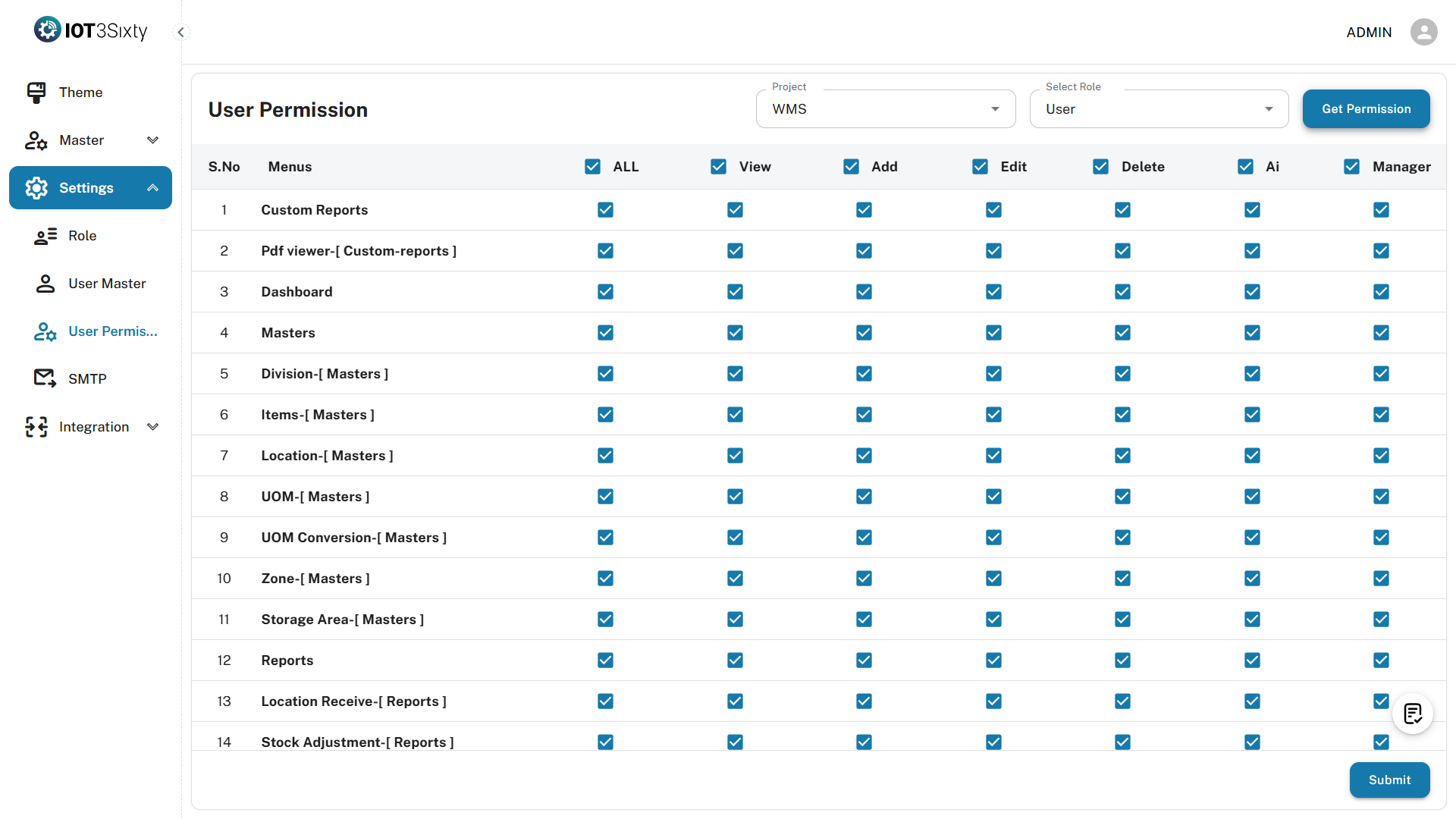
Selecting Permissions
Permissions are categorized by module. For example:
Module: Masters
You can enable or disable permissions like:
| Permission Type | Description |
|---|---|
| View | User can only view the records |
| Create | User can create new entries |
| Edit | User can modify existing entries |
| Delete | User can remove records from the system |
For each module (e.g., Item Master, Location, Division), you can toggle permissions individually.
Saving Permissions
Once you’ve made the necessary selections:
- Click the Save button to apply permissions for the selected Project + Role.
A success message will appear:
PERMISSIONS UPDATED SUCCESSFULLY
Notes
- Users will inherit permissions based on their assigned role and project.
- These permissions affect visibility and allowed actions in the application.
- If permissions are updated, they take effect immediately (unless session caching applies).
Best Practices
- Define a permission template for each role before assigning to users.
- Avoid giving full permissions (View, Create, Edit, Delete) to roles that should have restricted access.
- Use project-specific permissions to separate environments (e.g., testing vs production).