Onboard Process Instructions
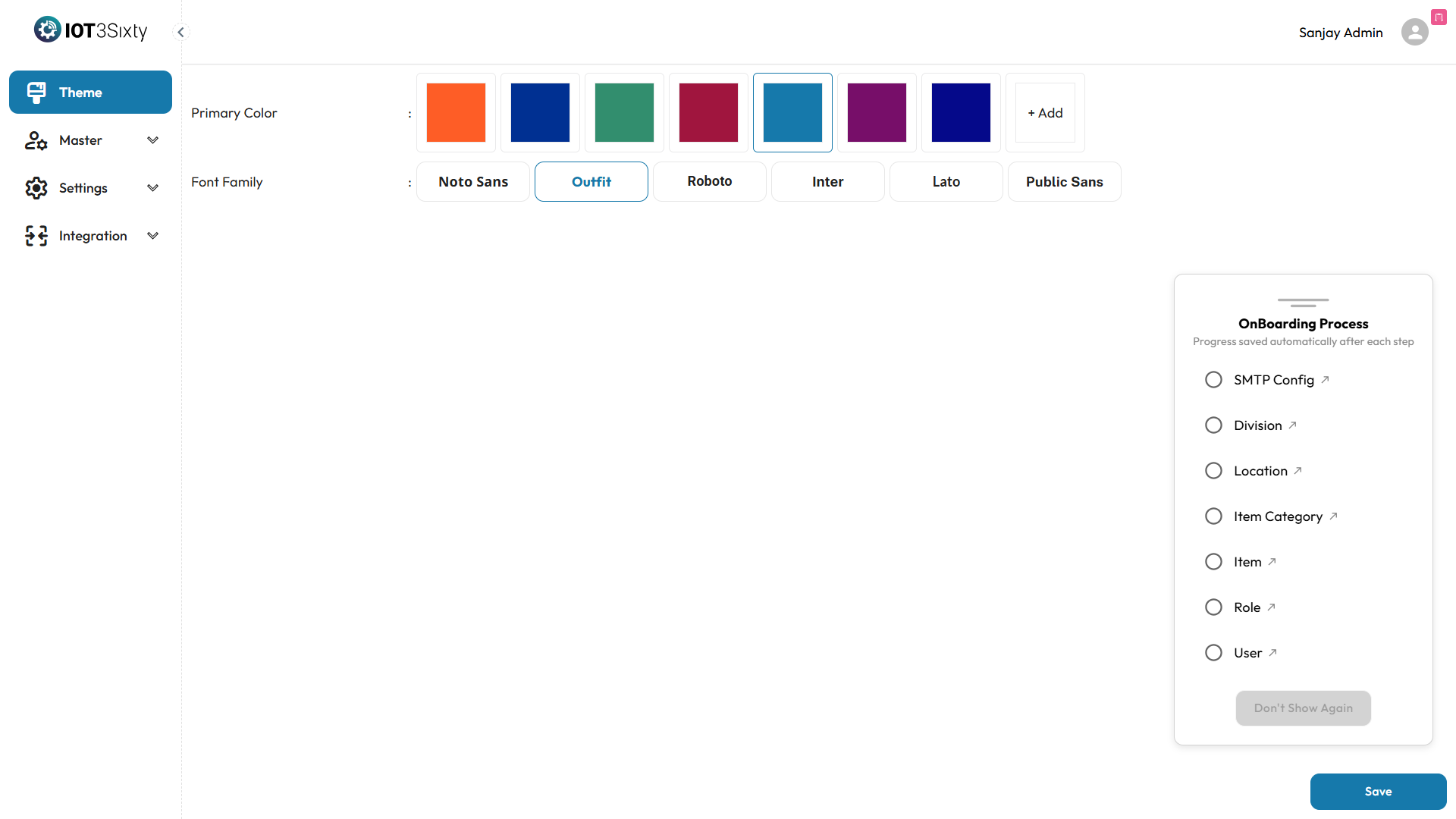
The Onboard Process is a guided setup panel designed to ensure that all essential configurations are completed before using the system in production. This panel appears on the right side of the screen after login for Admin users.
How It Works
- The Onboard Process contains a checklist of critical setup steps such as SMTP Configuration, Division, Location, Item Category, and so on.
- Each item in the checklist corresponds to a configuration module.
- A step will be automatically marked as Completed (✔️) once its required data has been created and saved successfully.
Completion Criteria
Each step is only marked complete when the following conditions are met:
- SMTP Configuration – Valid SMTP settings are saved and tested successfully.
- Division – At least one division has been created.
- Location – At least one location is defined.
- Item Category – At least one item category is added.
- Item – At least one item is configured.
- Role – At least one role is defined.
- User – At least one user is created and assigned a role.
When the Checklist is Complete
- Once all onboarding steps are marked as completed, the "Don't Show Again" button will become enabled.
- Clicking Don't Show Again will hide the onboarding panel for your user account on future logins.
- This action is stored (e.g., in session or backend) to indicate that onboarding is complete for this admin.
Important Notes
- You can revisit and update any step at any time by clicking the step name in the Onboard Process panel.
- The checklist ensures that all foundational data is in place for smooth operation and access control.
- If no data is present in a particular step, it will remain unchecked and the "Don't Show Again" option will remain disabled.